

Serious privacy and VPN power at a budget price — great if you like control (and don’t mind a little tinkering). If the idea of your smart TV gossiping ...
 WiFi Guy

The Dawn Of A New Age? User Friendly VLAN Support! Want enterprise-grade isolation without a degree in networking? Meet the routers that do the heavy ...

These Wi-Fi 7 Mesh Systems Don’t Play Dead zones don’t care how fast your internet plan is. They just show up and ruin things anyway. These three ...

Smart List Of Smart Hubs Including Starter Automations You don’t need a house full of gadgets or a tech degree to start a smart home.You just need one good ...

The Best VPN Routers for Easy Setup If you want your internet activity to stay private, a VPN is one of the simplest tools you can use.But turning a VPN on ...
Lock Down Your Home Network With These 5 Security Systems Most people think home network security starts and ends with antivirus software on a laptop.In ...

RE600X vs. EAX15: Specs, Performance, and Value Compared Can the RE600X really rescue your dead zones or is the EAX15 the wallet‑friendly hero that ...

Mesh Wi-Fi 7 Battle Of The Beasts! Want jaw‑dropping Wi‑Fi 7 speeds without the geek speak—find out whether the Orbi’s premium punch or the Deco’s ...

Two Affordable Mesh Wi-Fi 6 Systems Battle It Out! Ready to stop yelling “Who stole the Wi‑Fi?”—we’ll show you which Wi‑Fi 6 mesh actually speeds up your ...

The Mesh Wi-Fi 6E Battle For Your Living Room! Want blazing-fast Wi-Fi without the tech headaches—find out whether TP‑Link's value-packed Deco XE75 or ...
User Deals: WiFi Guy
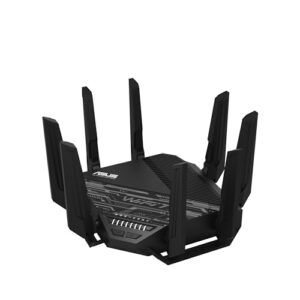
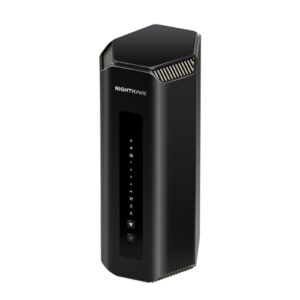
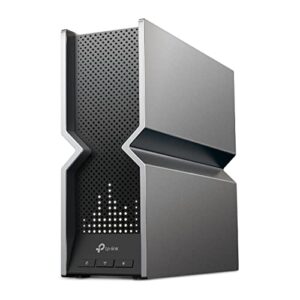
TP-Link Archer BE800 WiFi 7 Router
Original price was: $499.99.$349.99Current price is: $349.99. -30%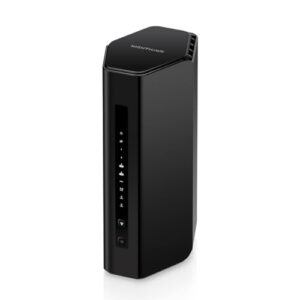
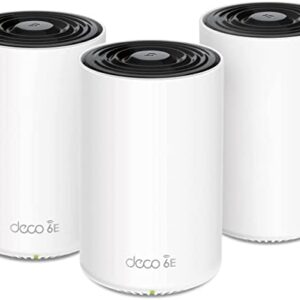
TP-Link Deco XE75 Pro AXE5400 Tri-Band WiFi 6E Mesh System
Original price was: $399.99.$249.99Current price is: $249.99. -38%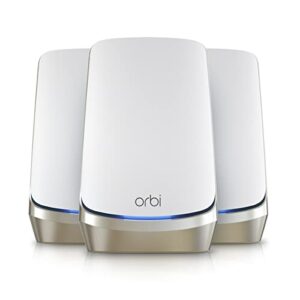
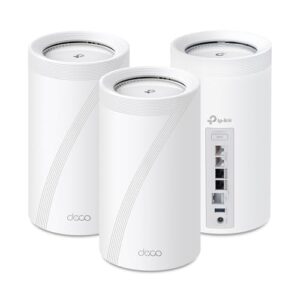
For lights + plugs on a budget, choose the hub with the best Zigbee support if your bulbs are Zigbee (like Hue or Sylvania). Many budget hubs handle basic automations well — check device compatibility first.
AP mode is usually straightforward: you connect the extender to your router via Ethernet, then follow the setup in the app or web UI. For TP-Link it’s typically labeled “Access Point” during setup — takes 5–10 minutes.
Ad blocking at the router level is convenient, but remember to whitelist sites you rely on. Some news sites break without allowing their ad domains.
Ha — fair description. It’s aimed more at people who want control and transparency. Casual users might prefer a more ‘plug-and-play’ consumer router.
Good point, Grace. The device-level scheduling and web-filtering categories are handy. If you rely on DNS-based parental controls, pair SRM with a local DNS filter for extra coverage.
That’s fair, Marcus. The RT6600ax targets users who want more advanced controls without enterprise complexity. If you only need basic Wi‑Fi, lower-cost options will cover browsing/streaming well.
Short take: AX86U is great if you want low-latency features and mobile-focused tools; AX88U is better for many wired devices and long-term security features. Static DHCP + port forwarding = classic move for stable gaming servers.
Netgear’s update history is mixed; the Orbi 770 is newer and has had fewer severe issues in community reports, but always back up configurations when possible and schedule updates during low-use hours.
Agreed — we noted scripting support briefly, but we’ll expand that section to highlight Node‑RED, YAML automations, and built-in scripting for power users.
Glad it helped! For small spaces, a single powerful router often gives the best cost/security balance.
Carlos/Emma — great tips. I’ll add a short sidebar about LED/placement and web UI options.
Thanks for sharing, Priya — the LED complaint is surprisingly common. We might add a tip in the article on covering/black-taping lights or checking firmware for a ‘night mode’ setting.
Three floors can be challenging. Two satellites might be sufficient depending on floor layout and construction materials. If you want minimal fuss, a higher-tier all-in-one mesh system might be easier, but if you want the PW-AX1800 security features, plan for wired backhaul between floors if possible.
Orbi’s hardware can reduce local congestion thanks to higher throughput and better handling of concurrent streams. For lowest ping, a wired connection is still best — but Orbi will help if you need wireless.
Fair point on price — the review rates it 8.8/10 because it balances gaming features with throughput. The 2.5G port is more of a forward-looking feature; its value depends on your existing setup. USB performance varies by workload and drive; Asus hasn’t made it a standout here.
Some third-party SFP+ modules work, but Ubiquiti tends to be picky — we recommend using tested modules or checking Ubiquiti forums for specific part numbers to avoid link flapping.
That’s a common trade-off — simplicity vs granular controls. For many users the eero’s auto-management is the feature.
Yes — the router is AiMesh compatible and works well as a primary node. In mixed networks you might need to check firmware versions for the best interoperability. For stable whole-house coverage, pairing with another ASUS AiMesh node usually does the trick.
Great to hear it’s serving both home and work use cases. Remember that routing all traffic through a VPN can add latency; you can also set per-device VPN rules if you only want certain devices tunneled.
Good questions. The router supports exporting/importing configuration files so restoring settings post-update is straightforward. Parental controls do support time-based rules per device, though the UI is manual — not as polished as some consumer-targeted systems.
A happy home is priceless — glad the mesh saved you from router-related shouting matches!
Great real-world perspective, Ava. Good point about older devices — 6GHz helps only with compatible clients. Placement is often the biggest factor in mesh success.
You’re not alone — naming and organizing is where a lot of people spend time but it pays off later with simpler voice commands and fewer automation mistakes.
Thanks for the write-up, Sarah — really helpful. If you see 2.4GHz drops try updating the firmware (if you haven’t), switch to a less crowded channel, and enable beamforming. Also check for devices with old Wi‑Fi drivers — those often cause the disconnects.
Thanks — a decision tree is a nice idea. We’ll try a simple one in the update: ‘Apartment vs House vs Hobbyist’ with recommended hubs for each.
Great practical example, James. VLANs are indeed a major selling point for privacy-minded users. Thanks for sharing your setup details.
Agreed — export configs before major changes. If someone posts their VLAN use-case, I can outline a step-by-step example.
Updates sometimes tweak roaming and band steering heuristics. If devices struggle, try setting them to 5GHz-only or adjusting their driver settings if possible.
Good point — match the system to who will maintain it. Simplicity wins for households where someone doesn’t want to tinker.
Thanks for the detailed note, Sarah — glad it’s working well. If you run into specific OpenVPN config issues, post the error and I can help walk through the settings.
If you want a true mesh that integrates at the router level, look for PCWRT-branded satellites or set the PW-AX1800 to AP mode and use a dedicated mesh kit. Mixing vendor meshes can be hit-or-miss.
Yes, wired backhaul is supported if your mesh satellites and the main unit both have the necessary Ethernet ports and are configured accordingly. Wired backhaul will give you more stable speeds than wireless mesh linking.
Thanks for sharing your experience, Sarah — really helpful. For others reading, HomeShield does bundle parental controls and basic security; the advanced features are subscription-based, FYI.
UDM-US is a solid entry point and keeps costs lower while giving you the UniFi experience. The UDR7 adds more modern ports and Wi‑Fi 7, so save up only if you need the extra performance. For ease and budget, UDM-US is a fine pick.
The Nighthawk can be great for raw throughput, but we’ve seen mixed stability reports. For a home office where uptime matters, the ASUS/TP-Link options or the UniFi devices are safer bets. If you still want Nighthawk, consider firmware rollback options and a UPS to prevent issues during power spikes.
Thanks, Emma — good idea. We’ll add a compact compatibility table in the next update to help folks quickly match devices to each hub.
Fantastic write-up, Olivia — the note about NAS and 2.5Gb ports is especially useful for folks with heavy local network needs.
Price and features weigh heavily — TP-Link often offers strong value, Netgear often includes a couple security/UX extras. Decide based on which feature matters more to you.
Good point — manufacturer device counts assume light usage per device. If several stream 4K or have frequent uploads, you’ll hit throughput limits sooner. Mesh extenders help spread load but don’t create unlimited capacity.
EAX15 specs show it as a WiFi 6 range extender but many models in that class include at least one Ethernet LAN port. Always check exact SKU specs before purchase. For lowest ping use wired backhaul where possible.
You’re not alone in that view. Wi‑Fi 7 shines in very high-density or high-throughput scenarios (lots of simultaneous streams, multi-gig transfers). For many homes, high-end Wi‑6 will be more than sufficient. The UDR7 is more future-looking and aimed at power users (NAS, labs, many devices).
Awesome to hear, Kara — glad it helped. If you run into any snags with guest VLANs or controller adoption, ask here.
Latency can be influenced by routing and backhaul. If gaming is a priority, Deco with ethernet backhaul is usually the safer bet.
Exactly — Deco gives you more physical ports, which matters if you have multiple wired devices at each node. Aesthetics vs. functionality tradeoff!
Also worth noting: firmware updates on both are automatic by default, but Deco gives more visible feature toggles (QoS, VPN options), so it feels less ‘hands-off’ than eero.
Good question, Olivia. eero’s app is widely praised for its ease of use and automated updates. Deco’s app offers more advanced settings and TP-Link provides ‘Free Expert Support’ with the Deco BE63 — helpful if you need human assistance, but the app UI is a bit more feature-rich and can seem cluttered.
Thanks for that hands-on feedback, Oliver — exactly the kind of real-world experience readers find useful. Any tips for initial VLAN naming or DHCP plan you followed?
Perfect — that’s a tidy plan that others can copy. Thanks!
Nice combo approach, David — many users get the best of both worlds by pairing a strong router with targeted mesh/extenders. The AX80’s multi-gig is a real advantage if you want to future-proof.
Haha — the plant pot story is gold. And yes, Deco’s ports are an advantage if you have existing Ethernet runs to use as backhaul.
Real-world throughput depends on your internet plan, local interference, and device capabilities. Orbi hits higher throughput ceilings in lab tests, Deco is very close for most consumer setups, and eero prioritizes stability over absolute top speed.
The free tier covers basic security and parental controls. Paid HomeShield adds advanced threat protection, detailed reports, and extra protection layers. You can run it fine on free tier, but paid is useful for families who want deeper controls.
Thanks, Karen — glad it helped! Real-world speeds depend a lot on wiring, ISP, and placement. eero can get close to advertised on wired backhaul or strong single-link connections, but mesh wireless hops will cut throughput some.
The PW-AX1800 is positioned as a budget-friendly option with strong VPN/VLAN basics — a good pick if you want functionality without the learning curve. Synology and Ubiquiti typically sit a bit higher price-wise (and Ubiquiti leans toward power-user features). If budget is key, the PW-AX1800 is a sensible place to start.
Great feedback, Emily — that’s a fair point. We’ll consider adding a comparison matrix in the next update to make trade-offs clearer. Any particular features you’d want ranked first (ease-of-use vs advanced controls vs price)?
Exactly — port availability can save you money and complexity, especially if you want NAS or wired backhaul without extra hardware.
WireGuard tends to be faster and simpler to configure than OpenVPN on many devices because it’s more lightweight and uses modern crypto. For consumer SoCs, WireGuard often has better throughput. As for VLANs over mesh: it depends on the vendor implementation. Some mesh systems preserve VLAN tags across backhaul, others don’t. For PW-AX1800 specifically, check the mesh/VLAN docs or test in a small setup.
Glad it worked out, Laura — thanks for the placement tip. Many users underestimate how much furniture and cabinets kill signal strength.
Great practical tip — too-close placement can cause interference and poor client handoffs. Spacing and orientation matter more than most expect.
Love the real-world workflow, Olivia — ‘felt like magic’ is our favorite metric. We’ll add your reset tip to the pairing troubleshooting.
Thanks everyone — lots of good troubleshooting tips here for other readers.
Thanks Priya — we’ll expand the compatibility section. Mixing Zigbee and Z‑Wave is usually fine because they use different radios; issues tend to come from hub software or too many devices on one protocol.
We’ll link to a few verified compatibility pages for the hubs in the next revision — good call.
Good idea — we’ll add family-focused automations (homework lights, bedtime reminders, safe arrival notifications) in a follow-up post.
For a small apartment a single strong Wi‑Fi 7 router (or a 3‑pack for placement flexibility) can be overkill but gives longevity. If you want low fuss, eero is fine — but you could save with a single high-end router instead.
Look for hubs that advertise local processing or local APIs. The mid-tier and enthusiast hubs on our list offer better local control; cloud-first consumer hubs may lose some features offline.
Thanks for the detailed experience — practical notes like firmware reboots help others weigh pros/cons.
Great A/B test, Priya — that aligns with what we saw in the article. Deco X55 edges out on raw performance and features; eero scores on ease-of-use and simple UX.
Simple checklist: 1) Change admin username/password; 2) Update firmware; 3) Set Wi-Fi encryption to WPA3/WPA2 Mixed; 4) Disable WPS; 5) Rename SSIDs (separate guest); 6) Enable automatic updates or reminders; 7) Disable remote admin unless needed; 8) Back up config. Apply the Wi-Fi change during a maintenance window because devices may need reconfiguring afterward.
Correct — bridge mode is ideal. If that’s not available, AP mode on the mesh system is the simpler workaround. Deco supports both; eero also has an access point mode but with fewer features.
Glad it worked well for you, Ethan. A tip: if you plan to run heavy VPN throughput, check the CPU load under Traffic Control — the router handles connections well, but throughput can vary with encryption type.
Agreed — real-world interference matters. Try automatic channel selection first, then manual scanning (Wi-Fi analyzers) to pick less crowded channels.
Love the diary format — that tells the real story. Smart home flakiness is a common tie-breaker in favor of eero for many users.
Agreed — wired backhaul reduces latency and packet loss. Deco’s extra ports are handy for that use case.
“One WiFi Name” generally means the extender uses the same SSID as the main network to simplify connections, and it can help with roaming, but true fast roaming depends on client support of 802.11k/v/r. So Zoom handoffs improve but aren’t guaranteed.
Some users have reported promotional messages in Netgear apps. It’s not universal and sometimes depends on firmware/app version. Worth checking recent reviews in app stores before buying.
For a small apartment and sub-500 Mbps plan, eero 6 is a solid, low-hassle choice. You’ll get stable coverage and easy management. Only downside would be fewer advanced settings if you want fine-grained control.
Ha! Futureproofing is a valid strategy. Even in smaller spaces a tri-band 6E mesh can reduce congestion if you have lots of devices.
Great detailed feedback, Hannah — thanks! I’ll incorporate your real-world notes into the performance section. Mind if I quote your experience (anonymized) in an update?
Maya — if you only have one wired floor, consider using one satellite as wired node or using MoCA/Powerline to create a wired backhaul if you can’t run ethernet.
For most homes today, WiFi 6/6E is sufficient. WiFi 7 (like the Nighthawk RS500) brings higher throughput and lower latency for very high-bandwidth setups — useful for futureproofing or specific pro use-cases. If you don’t need multi-gig speeds now, you can wait.
Sorry you had that experience — firmware issues can happen. Look for retailers with good return windows and check community forums before major firmware installs if you’re risk-averse.
Thanks for sharing, Emma — great real-world example. The Deco X55 does tend to shine in brick/older homes because of the stronger radios and extra ports for wired backhaul. Glad it worked out!
You’re not missing anything — for light usage, Wi‑Fi 6/6E is still totally sufficient. Wi‑Fi 7 is more compelling if you want multi-gig local transfers, lots of simultaneous high-bandwidth devices, or future-proofing.
Good practical tip — enabling band steering often reduces client stickiness and improves speeds. Thanks for sharing!
Thanks, Olivia — glad it helped! You’re right: the big numbers are aggregated across bands/streams. Real-world single-client speeds will be lower, and wired backhaul will matter a lot for mesh performance. If you want I can add a small section to the article comparing single-client vs aggregate throughput.
Yep — aggregated theoretical maxes can be misleading. For most home users, the number of multi-gig ports and support for wired backhaul are more meaningful than headline Gbps.
Thanks for sharing your experience, Linda — exactly the kind of user story we hoped to hear. The Synology’s VPN and firewall defaults do make a tangible privacy improvement for most households. If you want tips on tightening the mobile app permissions or configuring split VPN, happy to add a short how-to.
Quick tip: if you’re worried about the app, use the web interface for initial configuration and only enable the mobile app features you need. Also consider setting up 2FA for your router account.
Sometimes IoT devices don’t like being on an isolated VLAN if they expect to reach a hub on the main network. You can create VLAN rules to allow specific device-to-device traffic, or use static routes. Happy to walk through an example if you share device types.
Also worth noting — the BE12000 designation and 2.5 Gig port give decent wired options if you want to add a NAS or wired gaming PC later.
Haha — fair take on the name! The score reflects the strong performance and feature set; we deducted a bit for the learning curve in advanced settings and the fact it’s router-only (so you do need a modem).
Totally — the subscription-free security was called out in the review as a positive. Asus has been leaning into that as a differentiator vs. routers that lock features behind subscriptions.
Coverage claims are ideal conditions. Two floors are often fine if the router is near the center and not blocked by lots of thick walls. For stubborn dead zones, a mesh satellite or wired access point will give more consistent coverage.
Good tip, Olivia. There’s a config backup option in SRM — export before big changes to save time on recovery.
Hi Maya — VLAN setup on the RT6600ax is more approachable than most enterprise gear. Synology’s SRM interface walks you through creating VLANs and assigning SSIDs to them. You don’t need deep subnet knowledge for basic isolation; the defaults are sensible. If you want custom routing rules, that’s when it gets more advanced.
Thanks for the catch, Grace — fixed! Glad automation helped. If you want suggestions on safe update windows, share your typical home usage times.
Thanks for sharing, Sarah. Port forwarding can be fiddly; glad the guide was helpful. The review mentions the larger footprint, but agrees performance makes up for it for most users.
You can run the UDR7 locally — UniFi offers both local and cloud-managed options. VLANs are supported in the UniFi interface (networking > VLANs), and you can create isolated networks for IoT and labs. It’s straightforward once you learn the interface.
Glad it worked for you, Hannah. Budget routers have come a long way — solid choice for many users.
Also worth double-checking firmware after setup — NETGEAR occasionally pushes updates that improve stability or add features.
Appreciate the real-world report, Nora. Good tip on QoS — prioritizing gaming/streaming devices can make a big difference. And noted on the lights — some users place the router where LEDs are less visible.
Thanks for the firsthand report, Laura — glad Mobile Game Mode helped. You’re right about the USB: the review mentions modest USB performance, so if file serving is a priority, consider a dedicated NAS or check firmware updates for improvements.
Thanks for the summary, Zoe. Love the “less like a UFO” line — we try to keep SRM approachable for everyday users while offering advanced options.
Thanks for the detailed breakdown, Noah. The Threat Prevention module uses local heuristics and signature updates — glad it flagged those connections. If you want to tune alerts, SRM’s logs and notification settings are pretty configurable.
SRM doesn’t natively push to SIEMs, but you can export logs via syslog to a local collector. That approach works well for small office monitoring.
Well put, Sofia. 160MHz can provide a boost but is sensitive to interference. For many users, 80MHz is a good compromise for range and stability.
Totally get the skepticism, Ava. New standards like Wi‑Fi 7 bring speed and capacity benefits, but security depends on firmware maturity and vendor practices. The RS500 has promising specs; just watch for a few firmware cycles before fully trusting it in a privacy-focused setup.
Short follow-up: if you want a safer bet now, consider the “simple-but-secure” pick in the article for automatic updates and easy recovery — less bleeding edge, more predictable security behavior.
Thanks Sophie — we plan to follow up with long-term firmware stability updates as Ubiquiti releases revisions. Good point about ventilation; the unit does get noticeably warm under sustained heavy throughput.
That’s a good summary, Diego. The UI has a lot of options — we recommend using the basic setup first and only tweaking advanced features once you understand the terms (QoS, channel widths, etc.).
App and web sync the same settings; the app just hides advanced options by default so it’s less overwhelming for newcomers.
Great point, Marcus. In our tests the RS500 handled a mix of devices well thanks to WiFi 7 improvements and tri‑band architecture, but very high simultaneous heavy-throughput scenarios (many 4K streams + large uploads) can still stress any single router. Mesh or wired backhaul helps at that scale.
Range for a single UDR7 is comparable to a high-end Wi‑Fi 6 router; for full 2‑story coverage you’d likely want additional APs or a mesh setup. The UDR7 can integrate into a UniFi mesh, but that adds complexity.
Some users have reported stable multi-gig WAN usage; throughput with VPN depends on encryption overhead and CPU. The router does well for many VPN tasks, but for sustained full line-rate VPN at multi-gig speeds you might hit CPU limits. The review flags VPN capability as solid but not exceptional for heavy multi-gig encrypted traffic.
Thanks for sharing, Anna! Glad it’s working well for you. If others are intimidated by the advanced settings, we have a guide in the article that walks through the key options step‑by‑step.
6GHz is less penetrative than lower bands and can be more sensitive to interference and placement. Try moving the router slightly, check for firmware updates, and test switching affected devices to 5GHz to see if stability improves.
If problems persist, gather logs (some routers let you export them) and reach out — community and support threads often reveal a specific compatibility quirk.
Good question. If you want some future-proofing and have a high-speed plan or multiple heavy users, WiFi 7 is a solid upgrade. If your devices are mostly older and your ISP speed is modest, WiFi 6E or a quality WiFi 6 router might be more cost-effective for now.
Good question — in our testing the UDR7’s traffic shaping and QoS can reduce jitter for gaming, but it requires manual tuning in the UniFi interface for best results. If you’re not comfortable, start with the preset profiles and adjust from there.
Mixing brands in a mesh (proprietary mesh features) often won’t work — most mesh setups expect the same brand or ecosystem. You can run them as separate APs if you disable the routing features on one (set to AP mode), but you’ll lose seamless roaming. And yes — router UIs vary wildly; vendors are improving but it’s still a mixed bag.
Thanks Laura — good tip about firmware versions. We added a short note in the article about version parity between controller and APs because VLAN tagging bugs are annoyingly common.
For a small apartment, ASUS RT-AX86U Pro is a great balance of price, performance, and security features. If you want simplicity and Synology’s management, RT6600ax is also excellent. The Nighthawk RS500 is more for futureproofing and heavy throughput — probably overkill for a small space.
Good point, Anna. We leaned toward WireGuard for simplicity and performance in the article, but left OpenVPN as an option for those who need legacy compatibility. We’ll add a short comparison table.
Great question, Marcus. The ASUS RT-AX86U Pro balances performance and security — it has solid intrusion detection features and decent firmware update cadence. Netgear’s RS500 (Wi‑Fi 7) is more bleeding-edge for throughput but check its early firmware maturity; Synology leans strongest on privacy defaults. For gaming + security, ASUS is a strong middle-ground.
Also worth checking your ISP speed vs router capability — if your WAN is the bottleneck, router upgrades won’t magically reduce latency. But for local device-to-device stuff and heavy NAT, R7000 wins.
Good question, Priya — for mixed loads (streaming + video calls + gaming) the R7000 usually handles congestion better thanks to stronger hardware and more robust QoS options. That said, the A7 is perfectly fine for many households.
If low latency for competitive gaming is critical, go R7000. If budget is a concern and you primarily stream/watch or casual game, A7 should be fine.
Good question. ER605 V2 can do some basic firewalling but full IDS/IPS usually needs more horsepower — either a separate UTM appliance or a small x86 box with Suricata. The article suggests lightweight rulesets to avoid bogging down CPU if you keep it on the router.
Correct — Deco’s spec sheet emphasizes more multi-gig wired flexibility. eero focuses on simplicity and reliability for most households. Good point about expected future-proofing.
If aesthetics and minimal management are priorities, eero is a solid pick. If you want expandability and more LAN speed options, Deco wins — even if it feels a bit more technical.
Great point, Karen. Most households won’t need 10 Gbps today. Deco targets users who want multi-gig LAN or local NAS throughput. eero aims for simplicity and aesthetics. Choice depends on whether you value raw spec headroom or a plug-and-play experience.
If you can wire nodes (Ethernet backhaul), using multiple high-quality routers as APs is excellent. For easier setup and seamless roaming, a purpose-built mesh system is simpler. For pure performance per node, high-end standalone routers turned into APs usually outperform consumer mesh nodes.
Note for others: if you want a lightweight UI, paperless/logstash-lite options exist but cost/complexity rises quickly. We recommend starting with file-based logs for home setups.
Love this checklist — exactly the kind of practical flow we hoped readers would follow. The smart plug issue is common; isolating noisy IoT is one of the highest ROI moves.
Love that — thanks for sharing, Olivia. Nothing beats peace of mind on the network!
Good breakdown, Tom. We try to mention the custom firmware angle in the article — it’s a big plus for power users but not for everyone.
Good point, Tom. For small offices I’d recommend pairing a secure router (Synology or ASUS, depending on features you prefer) with a managed switch that supports VLAN tagging. That lets you enforce segmentation at the access layer. We didn’t want to overcomplicate the article, but could write a short follow-up on router + switch setups if there’s interest.
2.5GbE mainly helps for local network throughput: faster transfers between devices (e.g., NAS, workstations) and future-proofs if your internet plan upgrades. If your ISP is 500 Mbps, you won’t see internet speed boosts beyond that, but LAN speeds and multi-device simultaneous transfers benefit.
Thanks, Nora — nice real-world example. VPN performance depends on your uplink and encryption settings. Purple SE handles remote VPNs well for a few users; for many concurrent users, factor in CPU and throughput limits.
Thanks Emily — glad A7 worked well for you. Many readers choose it for the value.
ASUS RT-AX86U Pro is a solid choice for gaming with good QoS and security features. For a two-storey house, pair it with a mesh node or a wired backhaul if possible. The hardening steps in the article are meant to be approachable: change default creds, enable WPA3 where available, disable WPS, and set up parental or device-level rules. If you want, follow up with your specific floor plan and devices and we can suggest exact placement.
You can use the R7000 USB as a file server and even host small media shares, but it’s not a true NAS in terms of performance. Plex metadata and transcoding require more CPU than the router offers. For direct-streaming (no transcoding) it’s fine; for heavy transcoding, a proper NAS or a dedicated PC is better.
One more tip: if you rely on that drive heavily, consider redundancy/backups — router-hosted drives can fail and recovery is a pain.
Thanks for the catch, Ethan — fixed the typo. Good tips on PoE budget and passive monitoring; we’ll highlight those as recommended steps.
Check for firmware updates monthly as a baseline, and enable auto-updates if the router supports them (or at least automated notifications). Before applying a major firmware update, back up your config and, if possible, read the release notes for any breaking changes. If you use Synology: they have a pretty stable updater—apply during off-peak hours and keep a backup.
We’ll add a config appendix with a sample whitelist and rule set recommendations for home use.
Totally agree. We tried to emphasize tuning but can expand with sample configuration snippets and recommended rule exceptions for common home services (NAS, printers, smart TVs).
Thanks Anna — glad the guide helped! Good tip about the modem reboot; it often clears routing issues after a new device is added.
Custom firmware offers more control, advanced features, and often better privacy options, but it can void warranty and requires comfort with flashing and troubleshooting. Asuswrt-Merlin supports many ASUS models (check compatibility list for RT-AX86U Pro); OpenWrt supports a wide range but has varying levels of hardware support. If you go custom, read the docs carefully and keep a recovery plan.
Privacy concerns are valid. Check the privacy settings and opt-out options in the router UI. Also, disable any cloud features you don’t need and restrict remote management. If privacy is a top priority, Synology is often praised for clearer data practices, or you can look for routers that support open firmware.
If you’d like, I can add a short checklist for non-technical users in the article: things like change admin user, enable automatic updates, disable WPS/remote admin, set up guest Wi‑Fi, and enable 2FA.
Short answer: varying degrees. Synology tends to ship with stronger defaults and more privacy-first options enabled; ASUS offers good defaults but some advanced features might be off by default; Netgear’s defaults vary by model. Regardless, change the admin password, enable 2FA if available, and disable remote admin unless you need it.
Thanks for flagging that, Diego. False positives can happen with aggressive rules. The article recommends creating exceptions for trusted internal services and tuning detection sensitivity — sounds like you followed that.
Testing in staging is wise. Also check concurrent VPN and throughput specs vs your expected load.
Good question. Purple SE targets home and small business: strong controls (VLANs, policies, VPN, DPI) but it’s not a full enterprise appliance. For moderate business use — multiple VLANs and access controls — it should work well. For very large concurrency or advanced SIEM integration, you’d look at higher-end enterprise gear.
One more tip: when using multi-gig links, ensure your switches and cabling support the speed (Cat5e vs Cat6). Otherwise the Deco ports will fall back to lower speeds.
Marcus — good technical question. Deco typically auto-detects wired backhaul when the nodes are connected via Ethernet, and it’ll prefer that over wireless. The app shows connection type for nodes. You can also manually prioritize settings, although granular port bonding/grouping isn’t commonly exposed in the consumer UI.
VPN on Deco is more for routing specific devices or secure access to a home network, not for reducing latency. For gaming, prioritize wired backhaul and QoS settings if you can.
If you want, mention the types of alerts you get and I can suggest which ones to disable without losing important signals.
Welcome, Maya — glad that section helped. Parental rules on the Purple SE are quite flexible: time-based blocks, app blocking, and device groups. You can tune alerts to only show critical events if you prefer fewer notifications.
Good question. Amazon listings can be sold directly by Firewalla, by authorized resellers, or third-party sellers. Buying from official Firewalla store on Amazon or the manufacturer’s site usually guarantees standard warranty. Check the seller name and return policy before buying.
Yes, you can create groups and policies to separate work vs home devices. Regarding VLANs: Purple SE supports VLAN tagging/segmentation in many deployment scenarios, but exact options depend on your network topology (gateway vs. mirror). Check the setup step about VLAN configuration.
If you want, post your current network diagram and we can suggest a VLAN/policy layout — many readers have done that and found it useful.
Thanks, Brian. Firewalla Purple SE is designed for home & small business throughput; in most setups it won’t be a bottleneck for typical consumer gigabit. But heavy DPI and lots of simultaneous VPNs can affect throughput — recommend checking the spec sheet for your expected concurrent connections.