
Enterprise-Grade Security For Your Home Network Without The Enterprise Pricetag
You don’t need an IT department or unlimited funds to make your home network much safer. Enterprise-grade here means practical controls: segmentation, monitoring, threat prevention, and secure remote access — not racks of gear.
This article shows a budget-minded path: pick flexible TP-Link Omada hardware, use smart firmware and software, and apply a few configuration habits. You’ll get big security wins for roughly the price of a gaming router. Read on to learn simple steps that protect devices, isolate risks, and keep you in control.
No fluff, just practical, proven guidance you can follow.



Understand the threat model and set realistic priorities
Identify what matters and who might care
Start by listing your assets: work laptop, phone, kids’ tablets, smart locks, cameras, NAS. For each, ask: would this being compromised cost me money, privacy, or safety? Real homes face a mix of opportunistic threats (malicious websites, phishing), device compromises (IoT cameras), and occasional targeted attempts (spear-phishing or stolen credentials). A quick inventory takes 10–15 minutes and immediately clarifies priorities.
Smart Protection for Your Home and Business
Common risks to consider
- Malicious websites and phishing that steal credentials.
- Compromised IoT devices used as botnet nodes.
- Accidental data leaks (cloud misconfigurations, shared photos).
- Targeted remote access attempts on exposed services.
Prioritize by value and likelihood
Score assets 1–5 on value and likelihood, then focus on the high/high items first. Example: your work laptop (value 5, likelihood 3) beats a smart light bulb (value 1, likelihood 2). For parents, kids’ privacy and school accounts often jump to the top.
Favor layered, low-effort controls
Don’t chase silver bullets. Combine simple layers: keep firmware updated, run DNS filtering, isolate IoT on a guest/VLAN, enforce MFA for accounts, and back up important files. A small set of layered controls stops most common attacks with minimal cost.
Next, you’ll use these priorities to choose hardware and firmware that give you flexibility and power without enterprise prices.
Pick the right hardware and firmware for power and flexibility
Why gaming routers are a sweet spot
Gaming routers pack beefy CPUs, extra RAM, and strong radios—exactly what you need if you want VPNs, traffic inspection, and multiple SSIDs without a separate appliance. Think of one as a mini enterprise box that doesn’t require procurement approval or a rack.
Specs that actually matter
Focus on components, not buzzwords:
- CPU: dual-core or quad-core ~1.5GHz+ helps with WireGuard/OpenVPN and lightweight IDS/IPS.
- RAM: aim for 256–512MB+ if you plan to run additional services or OpenWrt packages.
- Radios: dual‑band (2.4/5GHz) with good antenna/DFS support for consistent coverage.
- Expansion: USB ports, PCIe/M.2 or SFP options let you add storage, cellular failover, or faster uplinks.
- Hardware offload / VPN acceleration: look for AES-NI or vendor NAT/VPN offload if you want line‑rate encrypted tunnels.
Firmware: stock, open-source, or firewall OS?
Your choice determines flexibility:
- Stock: easiest; some gaming firmwares (Asus, Netgear) include QoS and VPN accel.
- Open-source: OpenWrt or Asuswrt‑Merlin unlocks packages, custom routing, and better security updates.
- Router appliance OS: pfSense/OPNsense on a small x86 box gives real firewall features (IDS, VLANs), but needs more power and learning.
Quick tip: check community support and recovery methods (USB restore, serial pins). I swapped a cheap ISP router for an Asus with Merlin and WireGuard—jumped from 30 Mbps to ~200 Mbps because the CPU and acceleration matched my needs.
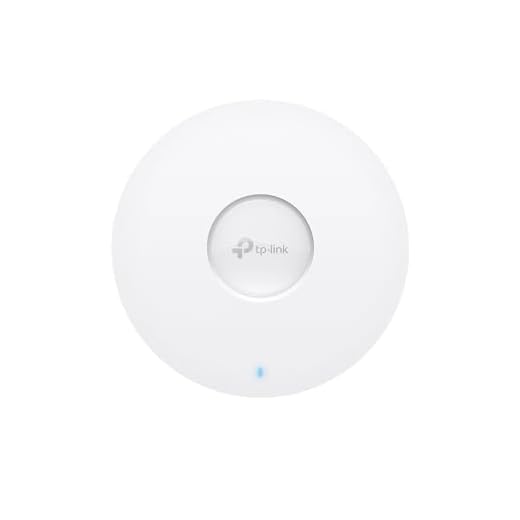
Easy to Use: Supports plug-and-play for instant connectivity and simple configuration for additional features. Centralized Cloud Management via the web or the Omada app
Segment your network like a pro: VLANs, Wi‑Fi zones, and device groups
Segmentation is one of the highest-impact enterprise habits you can bring home. Start small: create distinct zones for work, computers, IoT, cameras, and guests so a compromised light bulb can’t touch your laptop.
Decide your zones and naming
Pick clear names and consistent VLAN IDs—e.g., vlan10-work / SSID “Home-Work”, vlan20-iot / SSID “Home-IoT”, vlan30-guest / SSID “Home-Guest”. Keep SSIDs descriptive but not revealing (avoid “JohnsIoT”). Use VLANs for wired devices and separate SSIDs for Wi‑Fi.
Basic firewall rules that actually protect
Use a default-deny posture between VLANs, then allow only what’s necessary:
- Allow: Work → Internet
- Allow: Camera VLAN → NVR IP on specific ports
- Deny: IoT → Work (no cross-VLAN access)
- Deny: Guest → LAN (only Internet)
Log rule hits for a week to validate and loosen only if needed.

- 5× 10/100/1000Mbps RJ45 ports
- Easy to Use: Supports plug-and-play for instant connectivity and simple configuration for additional features
- Centralized Cloud Management via the web or the Omada app
- Automatic Loop Prevention, VLAN, and IGMP Snooping
- Fanless design for silent operation
- Durable metal casing and desktop/wall mounting design
DHCP, DNS, and device handling
Run DHCP per VLAN (or central DHCP with VLAN scopes). Reserve static IPs for cameras, NVRs, NAS, and your primary laptop. Use local DNS records or Pi-hole per VLAN so device names resolve safely and you can apply DNS filtering per zone.
Practical example
I moved smart bulbs and cameras to vlan20, blocked their access to vlan10 (work), and gave cameras only the NVR’s IP. When a firmware exploit hit a device, it couldn’t scan or reach my work machine—simple, effective isolation.
Segmentation makes later controls (IDS/IPS, DNS filtering, remote access rules) far more reliable—which is exactly what you’ll tackle next.
Add enterprise-style protections: IDS/IPS, DNS filtering, and secure remote access
IDS/IPS — what to expect and how to run one
You don’t need a $10k appliance to stop noisy scans and known exploits. Run Suricata or Snort on a capable router/appliance (OPNsense/pfSense, Protectli/Intel NUC) or use the built-in threat features on devices like the UniFi Dream Machine Pro. Basics:
- Suricata is multithreaded and scales with CPU; aim for a modern quad-core for >200 Mbps inspection.
- Expect false positives—start in detection mode, tune rules, then switch to prevention.
- Use Emerging Threats (ET) or vendor rule feeds and enable automatic updates.
DNS filtering — cheap, high-payoff protection
Block malicious domains and reduce telemetry with Pi-hole or AdGuard Home. Run them per-VLAN or as your DHCP-distributed resolver so:
- IoT/guest VLANs get strict blocking lists.
- Work VLAN uses a lighter blocklist to avoid breaking services.
A Pi-hole on a Raspberry Pi or a small VM gives immediate wins (fewer trackers, blocked payday-scam domains).
Secure remote access — don’t expose admin ports
Replace exposed web admin ports with a VPN or jump host:
- Use WireGuard (fast, simple) or Tailscale for mesh-style admin access.
- Put a small bastion VM on a management VLAN for SSH with key-only auth and rate-limiting.
- Add 2FA for any remote admin portal and log all sessions.
A friend once avoided a nasty router compromise because they only allowed admin via WireGuard from their phone—no open ports, no drama.
Next up: you’ll want to see this traffic and prepare for incidents—so let’s cover monitoring, logging, and planning.
Monitor, log, and plan for incidents without a huge toolchain
Enterprise security isn’t just prevention—it’s detection and response. You don’t need a SIEM team to know when something’s wrong.
Where to send logs
Pick one central place so you can search quickly:
- Router → local syslog on a NAS (Synology DiskStation) or Raspberry Pi 4 running rsyslog/Grafana Loki.
- Small cloud: a $5/month VPS (DigitalOcean) or cheap log service (Papertrail/Logflare) for off-site retention.
- Keep sensitive logs local (auth failures); send summaries off-site for redundancy.
Simple alerting you can live with
Automate the noisy bits and only wake yourself for real issues:
- Email or SMS for repeated failed logins.
- Push notifications via Home Assistant, Gotify, or Pushbullet for critical alerts.
- Lightweight dashboard: Grafana on a Pi/VM for traffic spikes, or UniFi controller charts for device behavior.
Quick checks that spot abnormal activity
Make a five-minute daily/weekly walk-through:
- New or unknown devices in the DHCP client list.
- Unusual outbound spikes or sustained high upload.
- Repeated failed auth attempts or unexpected admin logins.A neighbor caught a camera phoning home every night by noticing regular traffic spikes in Grafana—simple visibility saved them.
Incident-response checklist (keep it laminated)
- Isolate affected device (separate VLAN / block).
- Collect logs (router, NAS, cloud) and timestamp everything.
- Restore from verified backup or factory reset if needed.
- Reset credentials, rotate keys, and patch.
- Reintroduce device cautiously; monitor for recurrence.
Automate log rotation, alerts, and backups where possible so recovery is fast and boring—then you’re ready for the final tips in the Conclusion.
Start small, iterate, and keep your home secure without breaking the bank
Pick one improvement—better router/firmware, VLANs, or DNS filtering—and implement it this week. Measure the change in performance and visibility, then iterate.
Keep updates, backups, and occasional audits part of your routine. Over time small, consistent steps give you enterprise‑level protections at very modest cost. If you want a recommended first step, try flashing supported open firmware or enabling DNS filtering.



Love that they dropped specific hardware suggestions. Honestly though — the Omada OC200 reads like overkill unless you actually manage multiple locations. For a single-home enthusiast, cloud controller or the mobile app often does the trick. Still — good primer for people wanting to go pro without selling a kidney.
Great overview but a nitpick: IDS/IPS in home setups tends to generate a lot of false positives unless you tune it. The article mentions lightweight rulesets, but maybe add example rules to whitelist internal traffic patterns. Also, logging everything to a cloud SIEM isn’t necessary — local retention + scheduled audits works fine.
False positives killed my Suricata rollout until I tuned out UPnP and some IoT chatter. Now it’s useful.
We’ll add a config appendix with a sample whitelist and rule set recommendations for home use.
Totally agree. We tried to emphasize tuning but can expand with sample configuration snippets and recommended rule exceptions for common home services (NAS, printers, smart TVs).
What rules did you keep, David? Also curious if you block outbound traffic by default and only allow what you need.
Marta — I started with the Emerging Threats HOME ruleset, then whitelisted local NAS IPs and a few cloud services. Outbound default-deny is fine but can be annoying unless you script exceptions.
This article = exactly what I needed. A few stray notes from my experiments:
– Omada OC200 is nice if you want a local controller, but the cloud option is handy if you’re lazy like me.
– TL-SG1005P: check PoE budget if you plan to power multiple APs.
– IDS/IPS: start with passive monitoring (alert only) for a week before blocking — you’ll catch false positives.
Also, tiny typo in the article: ‘firmare’ -> ‘firmware’ on the third paragraph 😄
Agree on passive mode first. Nothing worse than bricking your own Netflix night trying to be secure 😂
Thanks for the catch, Ethan — fixed the typo. Good tips on PoE budget and passive monitoring; we’ll highlight those as recommended steps.
Okay this was super practical and not just doomscrolling about threats. A few things I did after reading:
1) Defined a simple threat model (guests, kids, work laptop)
2) Set up VLANs and a guest Wi‑Fi zone with the TP-Link EAP610
3) Used the TL-SG1005P to power the AP and segment my smart home devices
4) Logged DHCP and blocked weird DNS requests with DNS filtering
5) Kept it cheap by skipping a full SIEM, using a lightweight syslog + occasional manual review
Some hiccups: had to move some smart plugs to a separate subnet because they kept spamming the network. Also FYI the Omada OC200 setup wizard is kinda quirky on first run.
Note for others: if you want a lightweight UI, paperless/logstash-lite options exist but cost/complexity rises quickly. We recommend starting with file-based logs for home setups.
Which syslog solution did you use? I’ve been looking for something lightweight but searchable.
Did you set up guest SSID with client isolation? Curious if you had issues with Chromecast on the guest network.
Rafael — I use rsyslog forwarding to a small VPS and then grep when needed. No fancy UI but cheap and reliable.
Totally agree on isolating IoT. My vacuum used to phone home every hour and fill my logs 😂
Love this checklist — exactly the kind of practical flow we hoped readers would follow. The smart plug issue is common; isolating noisy IoT is one of the highest ROI moves.
Nice article. VLANs are powerful but man, they can get messy fast if you’re not disciplined. The section on threat modeling saved me — focusing on what actually matters for my home (kids’ tablets + NAS) changed my priorities.
One question: anyone using IDS/IPS on ER605 V2 or offloading to another device? I don’t want the router to be bogged down.
I run Suricata on a tiny Proxmox VM and use the ER605 for routing. Keeps things snappy.
Good question. ER605 V2 can do some basic firewalling but full IDS/IPS usually needs more horsepower — either a separate UTM appliance or a small x86 box with Suricata. The article suggests lightweight rulesets to avoid bogging down CPU if you keep it on the router.
I have the TP-Link EAP610 and it’s been great for Wi‑Fi 6 coverage. Placed it in the hallway and it smoothed out dead spots.
Coupled it with TL-SG1005P so I don’t need an extra outlet. The article’s bit about PoE and neat wiring is legit — keeps the desk tidy and reduces cable spaghetti. Small constructive: would’ve liked more on secure remote access options (WireGuard vs OpenVPN vs cloud portal).
Thanks — WireGuard is what I was leaning toward. Raspberry Pi idea sounds great for low cost.
Good point, Anna. We leaned toward WireGuard for simplicity and performance in the article, but left OpenVPN as an option for those who need legacy compatibility. We’ll add a short comparison table.
If you use the OC200, it can manage some remote access features, but for real secure access I prefer a small VPN server on a Raspberry Pi.
WireGuard all day — way simpler to configure and much faster in my tests. Just remember to rotate keys and restrict allowed IPs.
Great write-up — nailed the “start small, iterate” bit. I picked up a TP-Link ER605 V2 Gigabit Multi-WAN VPN Router after reading something similar and it handles my two ISPs fine.
Love that the article mentions VLANs and the Omada OC200 — centralizing configs made life easier for me. A couple of notes: make sure firmware on the EAP610 and the OC200 match the controller version, otherwise VLAN tagging behaves weirdly. Also, PoE switch saved me from messy power bricks 😅
Thanks Laura — good tip about firmware versions. We added a short note in the article about version parity between controller and APs because VLAN tagging bugs are annoyingly common.
Yup—had that exact issue. Upgrade the OC200 first, then the APs. Took me an afternoon to figure out why guest SSID was leaking into my IoT VLAN.
Did you use TL-SG1005P for PoE? Thinking about powering an EAP610 with it but worried about port limits.
Short and sweet: this gave me the confidence to ditch my ISP router’s crappy Wi‑Fi and set up an EAP610 + ER605. Much better. Thx!
Awesome to hear, Kara — glad it helped. If you run into any snags with guest VLANs or controller adoption, ask here.