Here’s How To Set Up Your Wi-Fi Without A Man!
Alright, ladies, let’s set the record straight: you don’t need a man to handle your Wi-Fi. Nope, not your boyfriend, not your brother, not that one guy in the office who “knows computers.” You’ve got this. Wi-Fi setup looks scarier than it really is, and once you know the steps, you’ll wonder why you ever waited around for somebody else to do it.

This guide is your no-nonsense walkthrough. I’ll keep the jargon to a minimum and give you the inside scoop in plain English.
Step 1: Unbox Like a Boss
Most routers and mesh systems come with way more packaging than necessary. Ignore the fluff—you’re looking for:
- The router (or mesh units if it’s a system).
- A power cable.
- An Ethernet cable (that’s the cord with little square plugs on the ends).
Don’t stress about all the random papers that fall out. 99% of the time you can ignore them.
Step 2: Plug It In Where It Matters
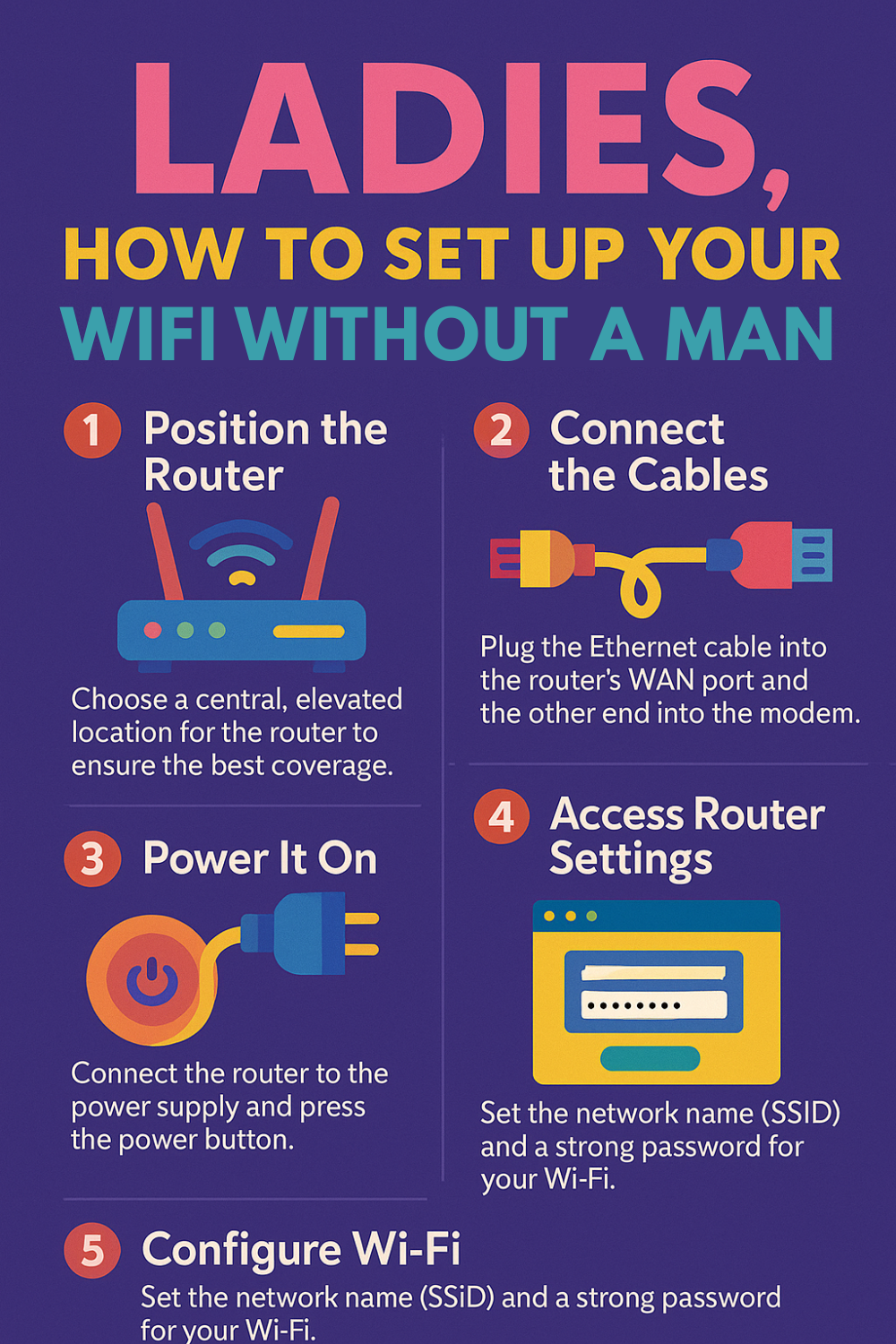
Here’s the golden rule: your router needs two things—power and internet juice. Internet juice comes from the modem your ISP gave you (that little box that’s already in your house).
- Plug the power cable into the router.
- Plug the Ethernet cable into the router’s WAN/Internet port (it’s usually a different color).
- Connect the other end to your modem.
That’s it. No toolbox required.
Step 3: Find the “Secret Code” (aka Wi-Fi Name & Password)
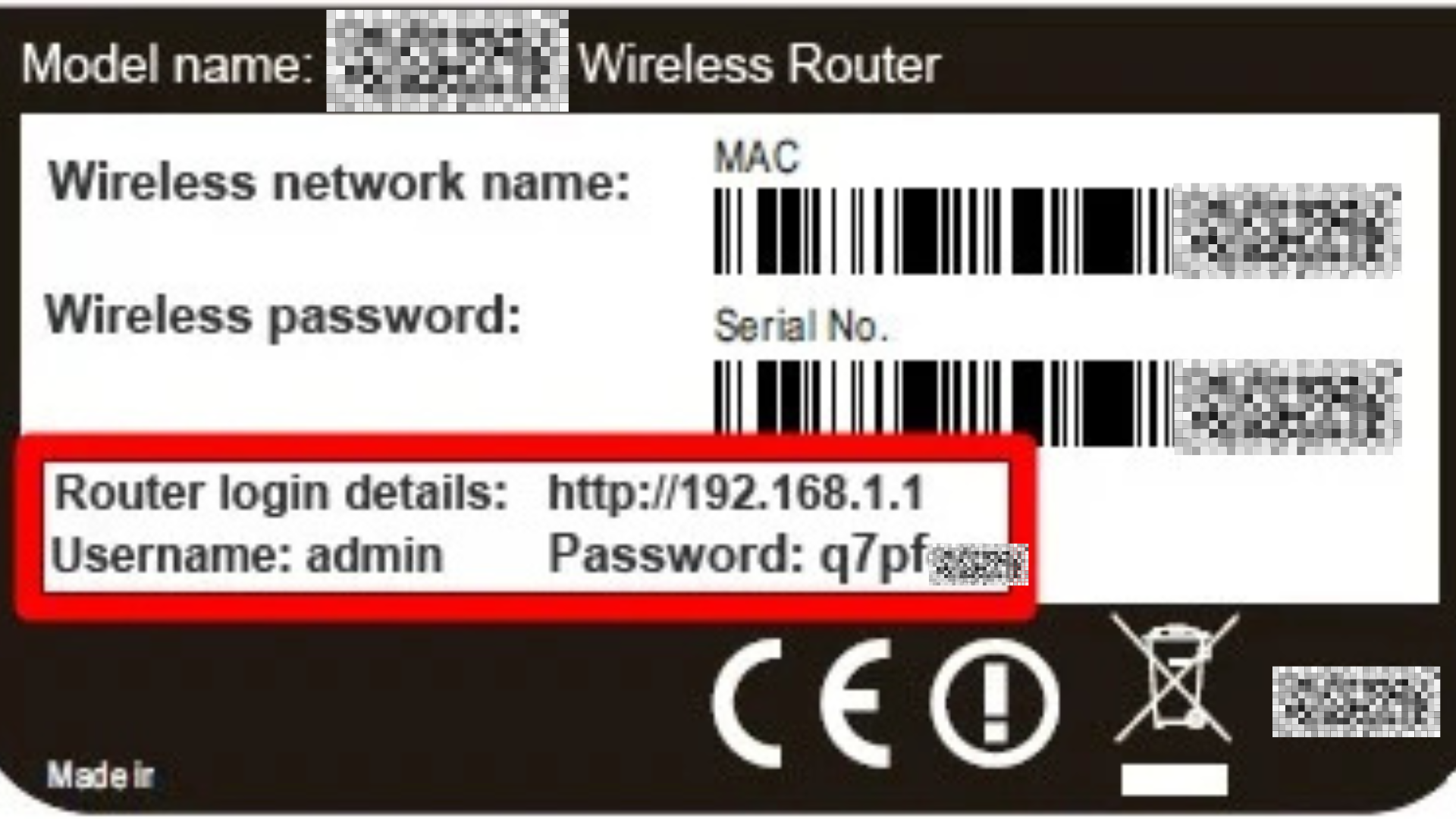
Every router has its Wi-Fi info printed on a sticker—usually on the bottom. Flip that bad boy over and look for:
- SSID (Wi-Fi name) – the default network name.
- Password/Key – the secret code to connect.
Pro tip: Write these down or snap a pic with your phone.
Step 4: Log In Like a Pro
Grab your phone or laptop, head to your Wi-Fi settings, and:
- Select the SSID you found on the sticker.
- Type in the password.
- Boom—you’re connected!
If you want to rename your Wi-Fi to something cooler (like “Queen of Streaming” or “BoysUse5GOnly”), you can do that in the router’s app or web settings. The instructions are usually on the box.
Step 5: Place It Smart
Where you drop your router matters. Don’t shove it in the closet behind a pile of shoes—it’ll choke your signal. Instead:
- Put it in a central spot in your home.
- Keep it off the floor and away from thick walls.
- Avoid hiding it in cabinets.
Think of it like a speaker—you want the signal to flow freely.
Bonus Tips:
- Change the default password once you’re connected. (Hackers love defaults.)
- If your place is big, consider a mesh Wi-Fi system instead of one router. It’s like having multiple little routers working together so you never hit a dead zone.
- Test your speed by standing in different rooms. If Netflix freezes in the bedroom, you know where to add a mesh unit or extender.
WiFi Guy’s Take
Setting up Wi-Fi isn’t rocket science—it’s more like plugging in a lamp and connecting your phone to Bluetooth. Don’t let anyone convince you it’s “too technical.” With a little patience and a couple of clicks, you’ll have your whole house online without waiting for “Tech Bro Tim” to show up.
So go ahead, unbox that router, plug it in, and own your network. You’ve got this. 💪
👇 If You Really Want To Nerd Out, Check Out My New Course!
✅ You’ll Be Able To:
- Fix Wi-Fi and device problems fast – Know what’s wrong and how to handle it
- Speed up your connection – Boost coverage, kill lag, and reduce dropouts
- Lock it down – Protect your network from freeloaders and shady devices
- Upgrade with confidence – Know what gear to get (and what to skip)
- Stop second-guessing yourself – Never be scared of a blinking router again
Become A WiFi 🧠Brainiac With These How-To Articles!
Routers With High-End Security And Easy VLAN Support
These Wi-Fi 7 Mesh Bullies Crush Dead Zones

Start Your Smart Home Off Right With These 3 Top Smart Hubs
Find Your Perfect VPN Wireless Router — Easy Picks
Serious Security For Your Home Network