
Blazing Multi-Device Wi‑Fi That Reduces lag — Powerful, Room-Filling, and a Touch Geeky.
You know the drill: video buffers, calls drop, and every device fights for bandwidth the moment someone starts streaming. That constant lag is usually because your router can’t handle lots of devices or modern gigabit-plus speeds — and you end up playing tech support for your whole household.
The NETGEAR Nighthawk Tri-Band WiFi 7 Router (RS500) wants to fix that with up to 12 Gbps wireless, a dedicated 6 GHz band to cut congestion, coverage for about 3,000 sq. ft., and support for roughly 120 devices. It’s a practical way to future‑proof your home network — just remember you still need a modem and a bit of patience to learn the advanced settings.
NETGEAR Nighthawk RS500 WiFi 7 Router

This router brings WiFi 7 speeds and modern features that make lag, buffering, and device fights much less of a problem — you get fast wireless, solid wired options, and strong multi‑device handling. It’s a great pick if you want to future‑proof your home network, but you’ll still need a modem and a little patience learning the advanced settings.
- Wireless Performance (Speed & Latency) – 9.5
- Coverage & Multi‑Device Handling – 9
- Ports, Wired Features & Expandability – 8.5
- Setup, App & Firmware Support – 8
Pros
- Blazing WiFi 7 speeds up to 12 Gbps for future‑proof performance
- Tri-band design (including 6 GHz) reduces congestion for many devices
- 2.5 Gig port for high‑speed wired backhaul or single‑device performance
- Solid coverage for most homes — optimizes up to ~3,000 sq. ft.
- Support for up to ~120 devices makes it great for busy households
Cons
- Router‑only — you’ll still need a modem for cable/fiber internet
- Advanced features may be overkill for small apartments or casual users
- Large physical footprint and noticeable heat under heavy load
Ultimate Netgear Nighthawk WiFi 7 Router Showdown: RS200–RS700 Compared
What this router actually gives you (in plain English)
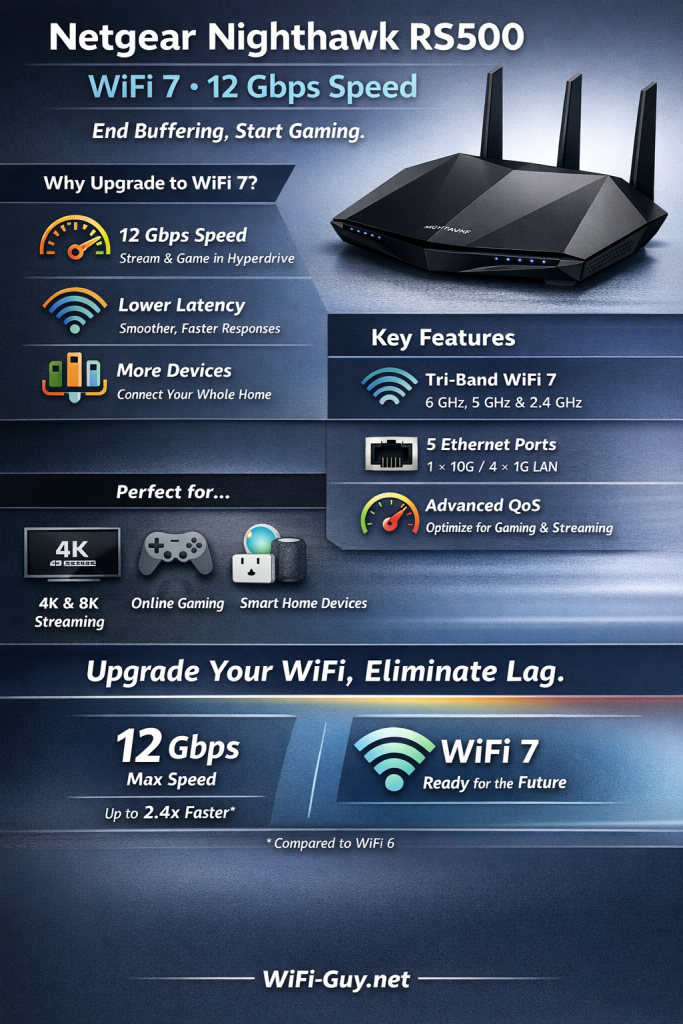
You’re buying more than a box with antennas — you’re buying a traffic cop for your home internet. The NETGEAR Nighthawk RS500 uses WiFi 7 to push massive throughput (up to 12 Gbps theoretical), a 6 GHz band to avoid the noisy 2.4/5 GHz crowd, and a mix of wired ports so your gaming PC or streaming box doesn’t have to share.
Quick hardware snapshot
| Item | What to expect |
|---|---|
| WiFi standard | WiFi 7 (BE) — latest available consumer generation |
| Bands | Tri‑band: 2.4 GHz, 5 GHz, 6 GHz |
| Wired ports | One 2.5 GbE + three 1 GbE LAN ports + WAN |
| Devices supported | Advertised up to 120 devices (real‑world varies) |
| Coverage | Designed for roughly 3,000 sq. ft. depending on home layout |
Performance you’ll notice
If you stream 8K clips, game online, or hop into constant video calls, you’ll see two immediate wins: reduced latency and more consistent multi‑device performance. The extra spectrum in 6 GHz gives you cleaner channels; that means fewer drops and less buffering when everyone’s streaming, meeting, or schooling from home.


Real‑world tips (so you don’t get tripped up)
- Place the router high and central — not shoved behind the TV.
- Use the 2.5 GbE port for your single most important wired device (NAS, gaming PC, or link to a switch).
- Reserve the 6 GHz band for devices that support it (new phones, laptops, consoles) for the cleanest performance.
Setup and daily use
Setting up the RS500 is straightforward: you can use the Nighthawk app or the web UI. The app is friendly if you want quick parental controls and simple guest networks; the web interface is still the place to go when you want to tweak QoS, port forwarding, or firmware details. Expect a short learning curve if you dive into advanced QoS rules or enterprise‑grade settings — but those are optional.


What you’ll love after a week
- Fewer “Who’s hogging the WiFi?” fights, because the router segments traffic and handles many devices well.
- Smooth 4K/8K streaming and snappy cloud gaming as long as your ISP feed is solid.
- Fast wired connections without needing extra adapters thanks to the 2.5 GbE port.
What to watch out for
- This is a router‑only product — it doesn’t replace your modem. If your ISP gave you a combo unit, you’ll still need that or a separate modem.
- Heavy sustained loads will make the unit warm; give it some breathing room.
- If you live in a tiny apartment with a single user and casual browsing, WiFi 7 is nice but not essential yet.
Who should buy this
- You host lots of connected devices (smart home, phones, tablets, TVs).
- You’re into cloud gaming, 4K/8K streaming, or low‑latency multiplayer gaming.
- You want a router that’s designed to stay relevant over several years without needing an upgrade next winter.
Quick buying checklist
- Do you have fiber or high‑speed cable (300 Mbps+)? Yes → this makes more sense.
- Do you need a modem? Check with your ISP — this device is router‑only.
- Do you want simple setup or deep customization? Both are available; pick the setup mode you’re comfortable with.
In short: the RS500 is a future‑forward router that takes the guesswork out of running a busy home network. You’ll get speed, capacity, and modern features — while keeping your family’s devices from arguing over bandwidth like roommates fighting for the last slice of pizza.
Where to Buy


FAQ
Do I still need a modem with this router?
Yes — the RS500 is a router only. If your ISP provides a modem (or a combined gateway), you can connect the RS500 to it. If you use a standalone modem, plug the RS500 into the modem’s Ethernet port. If your ISP uses fiber with an ONT, the same applies — you’ll still need that first piece of gear.
What’s the real benefit of WiFi 7 for my home?
WiFi 7 gives you wider channels, lower latency, and smarter multi‑device handling. In practical terms you get fewer buffering pauses on streaming, snappier cloud gaming, and better performance when many people are online at once. If you regularly push high‑bandwidth apps, it’s a meaningful upgrade.
Can I use the 2.5 Gb port for my gaming PC or NAS?
Absolutely. The 2.5 GbE port is perfect for a single high‑priority device — like a NAS for backups or a gaming PC — giving you multi‑gig wired speed without needing separate adapters.
How large a home will this actually cover?
NETGEAR advertises up to ~3,000 sq. ft., but real coverage depends on walls, materials, and placement. Think of it as excellent for most single‑family homes; if you have many floors or thick concrete walls, you might still want an extender or mesh nodes.
Is the Nighthawk app required to manage the router?
No — the app is convenient and user‑friendly, but you can access full settings via the web interface if you prefer finer control. The app is handy for quick tasks, parental controls, and monitoring.
Will older devices benefit from WiFi 7?
Older WiFi devices won’t get WiFi 7 speeds, but they can still benefit indirectly: cleaner 6 GHz traffic and smarter scheduling mean less interference on the other bands, so your older gadgets may run more reliably in busy homes.



Just upgraded from an older Wi‑Fi 6 router and WOW — the difference is noticeable.
No more buffering during 4K streaming, and the housewide coverage actually seems closer to the 3,000 sq ft claim.
Setup took a little fiddling with the advanced settings but once done it’s been rock solid.
Worth mentioning I still needed my modem — the RS500 is router-only.
Happy I bought this to future-proof the home network.
Same here — placement mattered a lot. I moved the router to a more central room and the dead zones vanished. Worth experimenting with height and orientation.
Thanks for sharing, Anna! Glad it’s working well for you. If others are intimidated by the advanced settings, we have a guide in the article that walks through the key options step‑by‑step.
Did you have to change any ISP settings or just plugged it in and set up the Wi‑Fi? I’m nervous about breaking my current setup.
I’ve been reading about WiFi 7 and the theoretical speeds, but real life is different.
My takeaway from the review: this router will reduce buffering and help in multi-device homes,
but don’t expect magic — you still need a solid ISP plan, a modem, and some patience setting advanced options.
Anyone else found the UI confusing at first?
That’s a good summary, Diego. The UI has a lot of options — we recommend using the basic setup first and only tweaking advanced features once you understand the terms (QoS, channel widths, etc.).
Thanks — I’ll try the app route. Anyone see a big difference between app and web changes?
UI took me 20 minutes to wrap my head around. The app is friendlier for basic settings; the web UI exposes everything which is great once you know what to change.
App and web sync the same settings; the app just hides advanced options by default so it’s less overwhelming for newcomers.
Been troubleshooting a weird issue: random device dropouts on the 6GHz band.
Anyone else seeing flaky 6GHz performance, or is it just my weird setup? Router placed in living room, plenty of devices.
I’ll try the device firmware angle. Thanks — hadn’t thought of that!
6GHz is less penetrative than lower bands and can be more sensitive to interference and placement. Try moving the router slightly, check for firmware updates, and test switching affected devices to 5GHz to see if stability improves.
I had similar dropouts — turning off adjacent electronics (like baby monitors) helped. Also confirmed all device drivers/firmware were up to date.
If problems persist, gather logs (some routers let you export them) and reach out — community and support threads often reveal a specific compatibility quirk.
Price vs value question — $299.99 for a router-only WiFi 7 box.
Is it worth skipping WiFi 6E or waiting a bit longer? I don’t want to pay for features I won’t use.
I waited — upgraded when my ISP offered >1 Gbps. Then the router actually mattered. If you don’t have high speeds yet, maybe wait until you need it.
Thanks — makes sense. I’ll keep an eye on ISP upgrades in my area first.
Good question. If you want some future-proofing and have a high-speed plan or multiple heavy users, WiFi 7 is a solid upgrade. If your devices are mostly older and your ISP speed is modest, WiFi 6E or a quality WiFi 6 router might be more cost-effective for now.
Good review, but I wish there was more info about real-world multi-device performance.
The spec says up to 120 devices — but that’s rarely reflective of simultaneous heavy use.
Curious if anyone has tried this with many smart home devices + gaming + streaming at once.
I run ~40 devices (phones, cameras, lights) plus two gamers and a Plex server — no major issues so far. Prioritize the 2.5G port for your main wired box if you have ISP speeds that demand it.
Great point, Marcus. In our tests the RS500 handled a mix of devices well thanks to WiFi 7 improvements and tri‑band architecture, but very high simultaneous heavy-throughput scenarios (many 4K streams + large uploads) can still stress any single router. Mesh or wired backhaul helps at that scale.
I live-stream and game — the Nighthawk RS500 cut my latency and buffering significantly.
Set up was a tiny bit annoying but once I enabled the right QoS and chose the best channel width it’s been smooth.
Also: the lights are obnoxious at night. 😅
If you’re picky about aesthetics, heads up — it’s not stealthy.
Also worth double-checking firmware after setup — NETGEAR occasionally pushes updates that improve stability or add features.
Jared — THANK YOU. Didn’t realize that was an option. Turning lights off tonight 😉
For streamers: run a quick speed test to the router and to the internet to isolate where latency is coming from (local network vs ISP). Helped me a lot.
Appreciate the real-world report, Nora. Good tip on QoS — prioritizing gaming/streaming devices can make a big difference. And noted on the lights — some users place the router where LEDs are less visible.
You can usually dim or schedule LEDs off in the settings — check the web UI under ‘LED lights’ or similar. Saved my partner’s sanity.
Thinking about this for a 2-story townhouse. The review says up to 3,000 sq. ft — is that generous?
Would it cover two floors without a mesh?
Coverage claims are ideal conditions. Two floors are often fine if the router is near the center and not blocked by lots of thick walls. For stubborn dead zones, a mesh satellite or wired access point will give more consistent coverage.
In my two-story house it covered both floors well when placed centrally. If your layout has a lot of concrete or metal, consider a mesh. Also raise it off the floor if possible — small wins add up.
Okay but can we talk about the name? Nighthawk sounds like it should come with wings and a cape 🦅
Also, $299.99 for WiFi 7 is… reasonable? Expensive? Depends if you want to brag at dinner parties.
Jokes aside, I liked the expert score in the review. 9/10 makes me think they didn’t dock for the ridiculous name.
Also worth noting — the BE12000 designation and 2.5 Gig port give decent wired options if you want to add a NAS or wired gaming PC later.
If you’re into names, mine’s ‘Router of Champions’ in my network list. Same performance, more ego boost.
Haha — fair take on the name! The score reflects the strong performance and feature set; we deducted a bit for the learning curve in advanced settings and the fact it’s router-only (so you do need a modem).
If it makes you feel better, my Nighthawk has never swooped but it has killed buffering crimes in my living room.
Lol about the cape. I bought it for the future-proofing — no ragrets (typo intended) 😅