The Ultimate Guide To Setting Up A Secure Home Network (Without Losing Your Mind)
These days, everything talks to the internet—your TV, your phone, your thermostat, even your fridge if you’re fancy. That’s cool… until some creep on the other side of the world decides your house is his new hobby.
This guide walks you through, step-by-step, how to:
- Lock down your Wi-Fi
- Protect your devices
- Keep your kids safer online
And still actually use your internet without becoming a full-time security engineer.
Think of this as a Home Network Safety Checklist, not a college course.
Why Bother Securing Your Home Network?
Your home network is basically your digital front door. If it’s wide open, here’s who can stroll in:
- Hackers – People who poke at your Wi-Fi until something breaks and they get in.
- Malware – Nasty software that can steal data, wreck files, or hijack your devices.
- Identity Thieves – The folks who want your SSN, bank logins, and credit cards.
- Data Breaches – When sensitive stuff on your devices or network leaks out into the wild.
And it’s not just about you:
Kids & older family members – They’re easier targets for scams, creepy messages, and sketchy sites.
Your Wi-Fi performance – Freeloaders and malware can slow your internet to a crawl.
Your smart home gear – Cameras, doorbells, thermostats and more can be used to spy on you if they’re not secured.
Bottom line:
You’re not being paranoid. You’re just locking your doors—digitally.

Step 1: Give Your Network a Quick “Security Check-Up”
Before we start flipping switches and tightening things up, let’s see how you’re doing right now.
Here’s your quick network health check:
✅ Update your devices
Make sure your computers, phones, tablets, and router all have the latest updates.
Updates = security patches that close known holes.
✅ Turn on automatic updates
Wherever possible, flip on “auto update” so you don’t have to babysit everything.
✅ Check your router firewall
Log into your router and make sure the built-in firewall is turned ON.
✅ Verify Wi-Fi encryption
Use WPA2-AES or WPA3 only.
If you see WEP or “Open” — that’s basically “front door unlocked and wide open.”
✅ Look for strangers on your network
In your router’s device list, scan for devices you don’t recognize.
If it looks sketchy and no one in the house claims it, disconnect and change your Wi-Fi password.
✅ Use a guest network (if available)
Give guests their own Wi-Fi so they’re not on your main network with your PCs, NAS, and smart gear.
✅ Turn off remote management
If you don’t specifically use it, disable it.
This is a common way outsiders try to mess with your router.
✅ Physically secure the router
Don’t leave it somewhere anyone can just walk up and push reset.
✅ Install antivirus/anti-malware
On your computers at minimum. Keep it updated.
✅ Monitor your network
Some routers have built-in usage/traffic views or mobile apps.
Use them to spot weird behavior (a smart plug suddenly uploading 5GB at 3 AM, for example).
✅ Stay security-aware
When you hear about major vulnerabilities in the news, that’s your cue to run updates and maybe change a few passwords.
You don’t have to be perfect here—this is just about finding weak spots before we tighten things up.
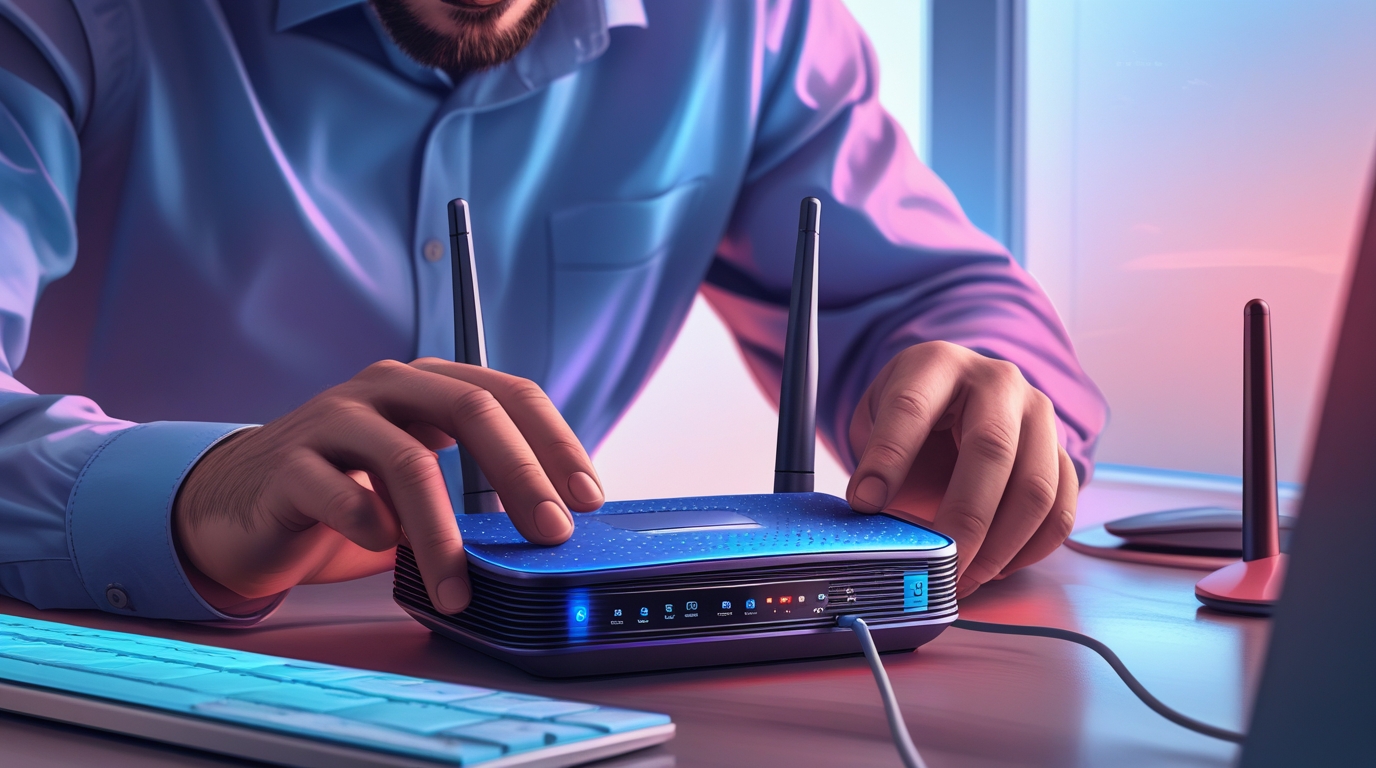
Step 2: Updating Your Router (Brain of the Network)
Your router is the traffic cop for everything in your house.
If it’s running old firmware, that traffic cop is half asleep.
Why router updates matter:
🛡️ Better security – Fixes known bugs and vulnerabilities.
🚀 Better performance – Smoother, faster, more stable Wi-Fi.
🧰 New features – Sometimes you get bonus tools and improvements.
How to Give Your Router a Free Upgrade
- Log into your router
- Open a browser and type one of these in the address bar:
- 192.168.0.1 or 192.168.1.1 (or whatever your manual says).
- Sign in as admin
- Use your router’s admin username/password.
- If you’ve never changed it, check the sticker on the router or the manual (then change it ASAP).
- Find the firmware/upgrade section
- Look under System, Maintenance, or Administration.
- Check for updates
- Click Check for Updates or similar.
- Download and install
- Let it download and apply. Do not unplug or power it off during this.
- Wait patiently
- It may reboot once or twice. Give it a few minutes.
Turn on automatic updates (if supported)
- If your router offers this, enable it. Future-you will thank present-you.
- Reboot once more if needed
- After everything completes, one more power cycle never hurts.
- Repeat every few months
- Put a reminder in your calendar: “Check router updates.”
Step 3: Creating Strong Passwords (Without Going Crazy)
Yes, I know. You’re tired of hearing “use a strong password.”
But here’s the deal:
Weak passwords are how people get into your network in the first place.
We’re mainly talking about:
Your router admin password
Your Wi-Fi password
Logins for important accounts (email, banking, etc.)
What a Strong Password Looks Like (WiFi Guy Edition)
Use uppercase + lowercase + numbers + symbols
Example: Burrito!Night77
Make it long — shoot for 12–16 characters minimum.
Avoid obvious stuff:
No 12345678, password, your name, or your street.
Skip plain dictionary words:
Instead of sunnyday2024, go for a weird combo like SpicyCloud!Door19.
Try a passphrase:
Start with a sentence:
“My dog steals socks every Friday” → MyDogStealsSocksEveryFriday!
Never reuse passwords on important accounts.
Use a password manager:
Let it generate and remember the wild stuff for you.
Turn on two-factor authentication (2FA) anywhere that supports it:
That way, even if someone steals your password, they still need your phone.
Think of your passwords like the locks on your house.
You wouldn’t give every neighbor the same key, right?
Locking Down Your Wi-Fi
Leaving your Wi-Fi wide open is like taping your house key to the front door.
Let’s fix that.

How to Tighten Up Your Wi-Fi
- Rename your Wi-Fi (SSID)
- Make it something non-personal:
- Good: CoffeeAndPackets
- Bad: SmithFamilyWiFi or 123 Main Street
Use a strong Wi-Fi password
- Same rules as before: long, mixed characters, no obvious words.
- Use WPA2 or WPA3 encryption
- In router Wi-Fi settings, pick WPA2-AES or WPA3.
- Avoid WEP like it’s spoiled milk.
Turn off WPS
- WPS is the “push button to connect” feature. Convenient, but easier to attack.
- Disable remote management (again)
- If it’s on, turn it off unless you absolutely know you’re using it.
Guest network: on or off
- If you use it, keep it isolated from your main network.
- If you never use it, turn it off.
MAC filtering (optional, not required)
- You can whitelist specific device MAC addresses.
- It’s extra work and not bulletproof, but an added hurdle for casual snoops.
Keep your router firmware updated
We already covered this—just don’t forget it.
Router placement
Do all that, and you’ve just made life much harder for Wi-Fi leeches and drive-by attackers.
Put it somewhere central so your Wi-Fi doesn’t blast out the window.
Less signal outside = less to attack from the street.

Step 5: Protecting Your Devices (The Stuff on Your Network)
Your Wi-Fi is the fence.
Your devices are the stuff in the yard.
We need both secured.
Device Protection Checklist:
🔄 Install system updates
Windows, macOS, iOS, Android—keep them current.
⚙️ Enable automatic updates
Let the devices handle it in the background.
🔑 Use strong device passwords/PINs
Skip 4-digit PINs like 0000 or 1234.
🧠 Use a password manager
Same one you use for your router/online accounts.
🧬 Use biometrics where available
Fingerprint, FaceID, Windows Hello—use them.
🛡️ Install reputable security software (on computers)
Antivirus / anti-malware helps catch the stuff you miss.
📥 Be picky about what you install
Download apps from official app stores or trusted sites only.
🎣 Watch out for phishing
Don’t click every link that shows up in email or text.
If it looks urgent, scary, or “too good to be true,” take a breath and verify.
🌐 Be careful on public Wi-Fi
Avoid logging into sensitive accounts on random café Wi-Fi.
If you must, use a VPN.
📍 Turn on “Find My Device” features
Lets you lock, locate, or wipe a missing phone, tablet, or laptop.
🔒 Physically secure important devices
Don’t leave laptops in cars. Don’t leave phones on tables at the bar.
Every step you take here makes it that much harder for someone to do real damage.

Step 6: Keeping Kids Safer Online
Kids are curious. So is the internet… a lot.
We’re not aiming for “bubble wrap your child.”
We’re aiming for “you’re not wandering into the worst corners of the internet on the family iPad.”
Kid-Safety Basics
🗣️ Talk first, tech second
Explain that not everyone online is who they say they are.
Let them know they can come to you if something feels wrong.
👀 Supervise device use
Keep younger kids in common areas when they’re online.
Don’t turn their bedroom into a secret internet cave.
🔐 Use parental controls
On the router, devices, streaming services, and app stores.
🌐 Use web filters
Block obvious adult or violent content via router or DNS filters.
📱 Check social media settings
Make their accounts private.
Friend/Follow = only people they actually know.
🚫 Teach them not to overshare
No address, school, phone number, or full name to strangers.
No sending pictures to random people online.
🧠 Talk about cyberbullying
What it is, how it feels, and that they should tell you if it happens.
🔑 Help them create strong passwords
And keep a secure record as a parent, especially for younger kids.
Tech helps—but conversations are still the most powerful safety tool you’ve got.

Step 7: Updating Software (Yes, Those Annoying Pop-Ups Matter)
Those update nags?
Half the time they’re saying:
“Hey, we just patched a big security hole. Want the fix or nah?”
How to Handle Updates Like a Pro
Check for system updates
Windows: Settings → Windows Update
macOS: System Settings → Software Update
Phones/Tablets: Settings → System / Software Update
Update your apps
App Store / Google Play → Updates section → Update all.
Turn on automatic updates wherever it makes sense.
Restart after big updates
Yes, I know. But it helps them apply properly.
Set a reminder
Once a week or once a month, do a quick “Update & Reboot” session for all devices.
It’s like changing the batteries in your smoke detector—boring, but it might save your butt later.

Step 8: Backing Up Your Data (So a Disaster Isn’t a Disaster)
Imagine your laptop dies tonight.
Do you lose a few files… or everything?
Backups are your safety net when hardware fails, malware hits, or you delete the wrong folder at 2 AM.
Simple Backup Strategy
Use the “2-location rule”:
Local backup – An external hard drive or NAS
Cloud backup – Google Drive, OneDrive, Dropbox, iCloud, etc.
Key tips:
🎯 Decide what matters most
Photos, documents, videos, business files, tax stuff.
📅 Back up regularly
Daily, weekly, or monthly depending on how often your files change.
🤖 Use backup software if possible
Set it and forget it instead of dragging files manually.
🧱 Store backups in different places
One at home, one in the cloud. If the house floods or gets robbed, you still have your data.
🧪 Test your backups occasionally
Restore a few files once in a while to make sure it actually works.
If catastrophe hits and you still have your data… it becomes an inconvenience, not a life crisis.
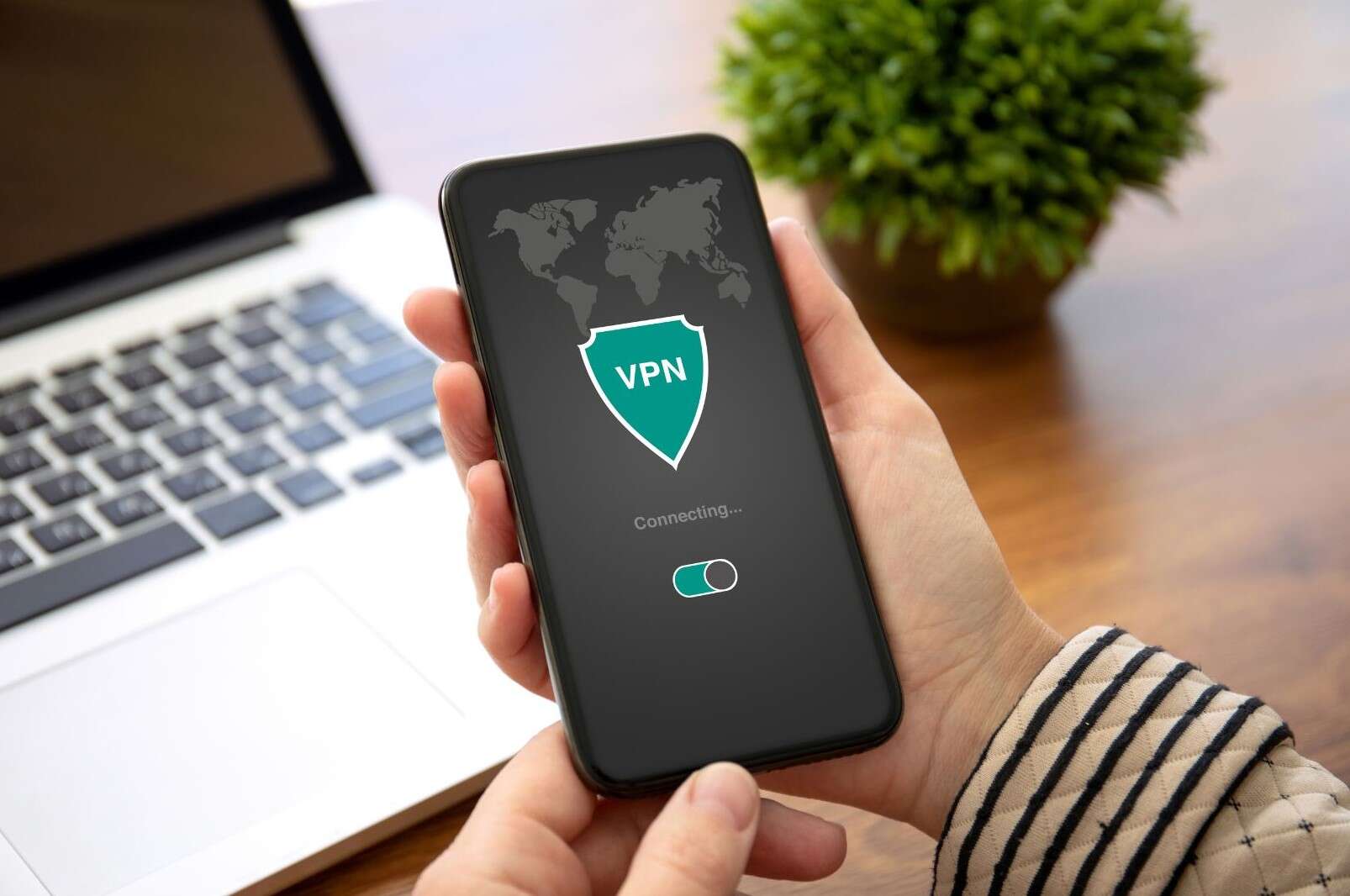
Step 9: Accessing Your Network Remotely (The Safe Way)
Sometimes you want to:
- Check your security cameras while you’re away
- Grab a file from your home PC
- Access your NAS or home server
- Remote access is handy—but also opens doors if done wrong.
- Important: When in doubt, use a VPN instead of randomly opening ports.
Core Concepts (In Plain English)
- Remote access – Connecting to your home network from somewhere else.
- Dynamic DNS (DDNS) – Gives your home a name (like myhouse.dyndns.com) that always points to your current IP.
- Port forwarding – Tells the router, “Hey, if someone knocks on this port, send them to this device.”
- VPN – A secure, encrypted tunnel from your device into your home network.
- Safer Remote Access Checklist
- Confirm your router supports what you need
- Some routers include remote access or built-in VPN.
- Set up Dynamic DNS (if needed)
- So you’re not memorizing your home IP, which can change.
Use a VPN if possible
- Router-level VPN is ideal; otherwise, use a VPN app that can reach home.
- Use strong passwords for everything
- Router, VPN, any remote access apps.
- Turn on encryption
- Don’t send your traffic in plain text.
- Keep router firmware updated
- Remote access with outdated firmware = unlocked side door.
Test from outside
- Try connecting from mobile data or another network.
- Avoid using random café PCs to connect home
- Use devices you control and trust.
If the phrase “port forwarding” makes your eyes glaze over, stick with a good VPN-based setup or a security appliance that simplifies this for you.

Step 10: Teach Your Family the Basics
You can have Fort Knox-level settings…
…but if someone in the house keeps clicking “Claim Your Free iPhone,” you’re still in trouble.
Keep it simple:
Explain why passwords matter.
Remind them not to click on random links or attachments.
Make sure they know to ask you before installing new apps or “free tools.”
You don’t need them to be “network engineers.”
You just need them to stop rolling out the red carpet for scammers.
Conclusion
If you’ve made it this far, congrats — you’re officially ahead of most people running a home network.
You do not have to:
- Implement every single thing in one afternoon
- Turn your house into a locked-down bunker
Start with:
- Update your router & devices
- Use strong passwords & proper Wi-Fi encryption
- Protect your most important devices and data
- Add family safety and remote access only if you need it
Do a few items each week, and before you know it, your home network goes from:
“Hope nothing bad happens”
to
“If someone wants in here, they’re going to have to work for it.”
Enjoy your faster, safer, more confident home network. 🌐🛡️
FAQs
Q: How often should I update my router?
A: Check every few months or when you hear about big security stories in the news. If your router supports automatic updates, turn that on and call it a day.
Q: Can I just use the same password for everything? It’s easier.
A: Easier, yes. Safer, absolutely not.
If one account gets hacked, attackers can try that same password everywhere. Use different passwords for important stuff and let a password manager remember them.
Q: How do I know if my smart home stuff (TV, thermostat, cameras) is secure?
A: Do this:
- Change the default passwords
- Update the firmware
- Put them on a guest or IoT network if your router supports it
- Turn off features you don’t use (like remote access you never touch)
Q: What should I do if I think my network’s been hacked?
- Disconnect suspicious devices from Wi-Fi.
- Change your Wi-Fi password and your router admin password.
- Run antivirus scans on your computers.
- Check your router for unknown devices or weird settings.
More Wi-Fi 🧠 Brainiac Articles!

pcWRT PW-AX1800 Wi‑Fi 6 VPN Mesh Router — High Security at a Low Price
Routers With High-End Security And Easy VLAN Support

These Wi-Fi 7 Mesh Bullies Crush Dead Zones

Start Your Smart Home Off Right With These 3 Top Smart Hubs
Find Your Perfect VPN Wireless Router — Easy Picks
Serious Security For Your Home Network
Home Network Engineer Course
✅ You’ll Be Able To:
- Fix Wi-Fi and device problems fast – Know what’s wrong and how to handle it
- Speed up your connection – Boost coverage, kill lag, and reduce dropouts
- Lock it down – Protect your network from freeloaders and shady devices
- Upgrade with confidence – Know what gear to get (and what to skip)
- Stop second-guessing yourself – Never be scared of a blinking router again