
The Dawn Of A New Age? User Friendly VLAN Support!
Want enterprise-grade isolation without a degree in networking? Meet the routers that do the heavy lifting for you.
Stop panicking about devices talking to each other. You can keep your smart fridge away from your work files and still stream 4K without a sweat. Simple VLANs and rock-solid security are not just for IT folks—you’re allowed to have both.
Pick a router that thinks like a bouncer and acts like a valet. Short setup steps, sensible defaults, and real VPN support mean fewer late-night troubleshooting sessions. You get privacy, performance, and fewer weird connectivity mysteries.
Top Picks


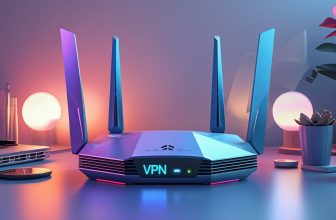
Ubiquiti Dream Router UDR7 Wi‑Fi 7
You get a cutting-edge, high-performance hub with Wi‑Fi 7, a 10G SFP+ gateway, and deep UniFi integration — ideal if you run a NAS, home lab, or lots of high‑bandwidth devices. It’s powerful but aims to reward a bit of setup attention.
Pros
- Wi‑Fi 7 support for future‑proofed wireless speeds and efficiency
- 10G SFP+ WAN/aggregation for high throughput wired needs
- Full UniFi app suite integration (Protect, Access, Network, etc.)
- Built-in PoE switch and local storage options for appliances
- Regular firmware updates and active ecosystem
Cons
- Premium price compared to basic routers
- A lot of features can overwhelm casual users
- Newer Wi‑Fi 7 ecosystem still evolving (device support varies)
Who should consider this
If you run a home NAS, do lots of local backups, host VMs, or want the fastest possible home networking backbone, this is aimed at you. It’s for people who value wired speed as much as wireless, and who like the UniFi ecosystem for monitoring and add‑on services.
Standout capabilities
- Integrated Wi‑Fi 7 radios plus support for older Wi‑Fi standards for broad device compatibility
- Desktop 10G SFP+ gateway for ultra‑fast WAN/NAS connectivity
- UniFi application suite support (Network, Protect, Access, Talk, Connect) and PoE capabilities
What you’ll notice in daily use
Expect snappy local transfers, low latency for gaming and video, and excellent performance when streaming many 4K/8K streams or moving large files to a NAS. The UniFi control plane gives you a single place to configure VLANs, firewall rules, and device access policies, which is perfect if you like one pane of glass for everything.
Practical limitations and advice
Because it’s feature‑dense, you may encounter a bit of a learning curve — but the reward is fine‑grained control. Wi‑Fi 7 is still seeing ecosystem growth, so some client devices may not yet fully exploit the new standard. If you mainly need simple home coverage and minimal configuration, this is probably more router than you need.
Setup suggestions:
Use the 10G link for NAS or server backhaul where possible
Leverage UniFi's VLAN and guest features to separate IoT and sensitive devices
Keep firmware updated and check release notes for new features and fixes
In short, if you want a future‑facing, high‑throughput home router that integrates tightly with a broader UniFi setup, this delivers. It rewards a bit of investment in time to configure, and then gives you a fast, centralized, and flexible network foundation.
Synology WRX560 Wi-Fi 6 Mesh Router
You get a feature-rich, security-first router that’s easy to manage and scale for a busy household or home office. It balances strong Wi‑Fi performance with approachable security tools so you can actually sleep better at night.
Pros
- Strong Wi‑Fi 6 performance with mesh capability
- Robust security features (Threat Prevention, Safe Access, WPA3)
- 2.5GbE configurable WAN/LAN port for faster wired speeds
- Intuitive Synology Router Manager (easy for non-experts)
- Good device capacity — handles many simultaneous clients
Cons
- Firewall logging and deep packet details can be limited
- Default setup enables features (UPnP, remote access) you should disable for security
- Not the cheapest option for casual users
Who this is for
If you want a router that takes security seriously without turning you into a Linux sysadmin, this one is aimed at busy homes and home offices. It’s great when you need VLAN segmentation for IoT vs. computers, a trusted VPN endpoint, and easy mesh expansion when coverage gets spotty.
Key features at a glance
- Dual‑band Wi‑Fi 6 (with 5.9 GHz support) and mesh capability for whole‑house coverage
- Configurable 2.5GbE WAN/LAN port for faster wired transfers
- VLAN segmentation, multiple SSIDs, Threat Prevention, Safe Access, and WPA3 support
What you’ll actually notice day to day
On the practical side, the web UI is clear and friendly: you can create separate networks for guests, IoT, and your work devices in just a few clicks. Threat Prevention and Safe Access are set up to protect common attacks and to filter malicious sites without you having to memorize firewall rules. The mesh features are straightforward, so adding a satellite is painless whether you wire it or use a wireless backhaul.
Tips, limits, and real‑world advice
Performance is excellent for streaming, video calls, and many connected devices, but there are a few things to watch for. Firewall logging isn’t as deep as a full enterprise appliance — so if you need forensic level logs you’ll find it limited. Also, defaults like UPnP and remote admin access can be enabled during setup, so flip those off if you want the tightest security.
Best practice checklist for secure setup:
Keep firmware updated regularly
Disable remote admin access unless you really need it
Turn off UPnP if you can and use port forwarding intentionally
Use Safe Access and Threat Prevention and let their databases auto‑update
In short, if you want a balanced, secure, and manageable router that doesn’t force you to be an IT pro, this one gives you high performance plus sensible security defaults — just take a couple minutes after setup to harden those few settings and you’ll be golden.
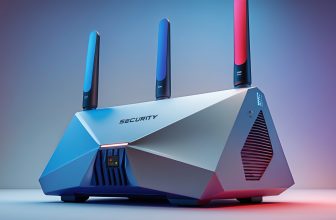
PW-AX1800 Wi-Fi 6 Privacy Router
You get a privacy-focused router that exposes powerful features (VLANs, OpenVPN/WireGuard) through an easier UI than raw OpenWRT. It's excellent if you want professional-level isolation and VPN routing without needing to learn command-line wizardry.
Pros
- Five preconfigured VLANs for easy device segregation
- OpenWRT-based power with a user-friendly interface
- Built-in VPN client and server (WireGuard/OpenVPN/IKEv2)
- Ad blocking and parental controls included
- Very good value for privacy/security features
Cons
- Wireless signals are modest — may need a mesh for full home coverage
- Requires some networking knowledge to get advanced setups right
- Limited ability to run multiple identical VPN tunnel types simultaneously
Who this works for
If you’re worried about smart bulbs chatting with your laptop, or you want certain devices forced through a VPN while others are not, this router makes VLANs and VPNs approachable. It’s aimed at privacy-conscious users who are willing to learn a few networking ideas but don’t want a full CLI setup.
Notable strengths
- Preconfigured VLANs that let you separate IoT, guest, and work networks with minimal fuss
- Supports WireGuard, OpenVPN and IKEv2; can run VPN client and server functions
- OpenWRT under the hood, but presented through a simpler UI for non‑experts
Real-world use and tips
In practice you can assign each LAN port or Wi‑Fi SSID to a VLAN, so your smart fridge and your laptop can’t see each other unless you explicitly allow it. VPN setup is pleasantly drag‑and‑drop for many providers; the built‑in kill switch prevents leaks if the VPN drops. Users often pair this unit with a separate mesh Wi‑Fi system if they need broad wireless coverage — use this as the privacy/control brain and let a dedicated mesh handle radio coverage.
Practical caveats
The wireless radios are fine for a small apartment, but if you’ve got multiple floors or thick walls you might need a mesh or additional access points. Also, complex routed VPN topologies (multiple same‑type tunnels to different endpoints) can be a limitation; you may need extra hardware for very advanced setups.
Quick setup tips:
Start by plugging devices into the VLAN ports and verify isolation
Test one VPN profile first to understand routing behavior
If wireless looks weak, turn off the router Wi‑Fi and pair with a dedicated mesh system
Overall, this is a smart pick if you want strong privacy and VLAN features at a sensible price — expect a short learning curve but a lot of control once you’re comfortable.
Final Thoughts
If you want one clear pick for most people who need strong security plus easy VLAN support, go with the Synology WRX560. It balances approachable software, built-in security tools, and mesh-ready Wi‑Fi so you can segment your home office, guest Wi‑Fi, and IoT devices without wrestling the command line. Ideal for busy households and home offices that want peace of mind.
If you need VLANs plus easy VPN routing and a privacy-first interface on a budget, the PW-AX1800 is the runner-up. It's the best choice when you want professional-level isolation and WireGuard/OpenVPN support with a friendly UI. Choose the Ubiquiti Dream Router UDR7 only if you run a home lab or NAS over 10G and can spend a little time tuning advanced settings—it's incredibly powerful but made for users who like to peek under the hood.
Router Buying & Setup Guide for Security-Minded People
Start by defining what you want to protect. Do you need to isolate work devices from kids' tablets? Are cameras and smart plugs allowed on the same network as your NAS? Write down 2–3 categories (e.g., Work, IoT, Guest). That simple list becomes your VLAN map.
Quick VLAN tips
- Keep VLANs small and purposeful: one for sensitive devices, one for IoT, one for guests.
- Block inter-VLAN access by default. Only open needed ports or services.
- Use DHCP per VLAN for clean IP management.
VPN and privacy tips
- If you want site-to-site or remote access to your home lab, set up WireGuard on either the router (PW-AX1800 and Synology make this straightforward) or on a dedicated device. WireGuard is fast and easier to audit than older protocols.
- Use the router for blanket protection (protects every device). Use device-based VPNs where you need specialized routes or country-specific IPs.
- Test with one device first. Confirm routing and DNS behavior before flipping the switch for everything.
Hardware considerations
- Need 10G? Choose Ubiquiti Dream Router UDR7. It has a 10G SFP+ gateway and is ideal for NAS and home labs.
- Want a secure, easy-to-manage home office? Synology WRX560 gives you security features and mesh expandability with a friendly UI.
- Want VPN + VLAN power without a steep learning curve? The PW-AX1800 targets privacy-first users who want pro features with less complexity.
Common mistakes to avoid
- Leaving default passwords in place. Change them immediately and enable 2FA where available.
- Mixing IoT with your primary work VLAN. Don’t put devices that can’t be updated on the same VLAN as your work computer.
- Skipping backups. Export your router config before big changes or firmware updates.
Maintenance & long-term care
- Schedule monthly checks: firmware, connected clients, and firewall rules.
- Keep a small log of changes. If something breaks after a tweak, roll back quickly.
- If you run a home lab, treat the router like any server: document VLANs, IP ranges, and any special routes.
If you want, I can sketch a sample VLAN layout for your specific setup (home office, NAS, cameras, smart home). Tell me your devices and the number of users, and I’ll draft a simple, copy-paste-friendly plan.
FAQ
Do I need VLANs for a home network?
Probably. VLANs let you separate traffic without extra cabling. Use one VLAN for work devices, another for IoT (thermostats, cameras), and a guest VLAN for visitors. It keeps your important stuff private and limits the damage if a smart gadget gets compromised.
Is VLAN setup scary?
Not with these routers. Synology gives a GUI that walks you through networks and firewall rules. PW-AX1800 presents VLANs alongside VPN options in a simpler UI. Ubiquiti offers powerful controls — a bit more learning, but worth it if you want fine-grained control.
Should I run a VPN on the router or on each device?
Both have pros and cons. Router-level VPNs protect every connected device and are great for home-wide privacy. Device-level VPNs let you mix and match destinations and avoid routing local traffic through a remote server. For most people, use router VPN for general privacy and per-device VPNs for special cases.
How important is firmware updating?
Extremely. Firmware fixes security bugs and improves features. Enable automatic updates or check monthly. Back up your config before major updates, especially on Ubiquiti gear or custom setups.
Can these routers handle gaming and streaming while running VLANs?
Yes. The UDR7 is built for high throughput (10G SFP+ uplink) and large networks. Synology and PW-AX1800 balance strong Wi‑Fi performance with security features. If you stream 4K, game competitively, and run NAS services, prioritize the UDR7. For smooth everyday gaming/streaming plus segmentation, Synology is the sweet spot.



Looking at the PW-AX1800 as an entry router for VLAN + VPN. I’m new to WireGuard vs OpenVPN — is WireGuard actually better for throughput on these consumer boxes? Also wondering if the mesh nodes maintain VLAN separation across the APs.
I run WireGuard on a budget router and it outperforms OpenVPN for sure. For VLANs, my mesh kept the VLANs but had a weird guest SSID quirk — YMMV. Try a single AP first to confirm behavior.
WireGuard tends to be faster and simpler to configure than OpenVPN on many devices because it’s more lightweight and uses modern crypto. For consumer SoCs, WireGuard often has better throughput. As for VLANs over mesh: it depends on the vendor implementation. Some mesh systems preserve VLAN tags across backhaul, others don’t. For PW-AX1800 specifically, check the mesh/VLAN docs or test in a small setup.
One gripe: device management UIs can make or break the experience. Ubiquiti’s UniFi is powerful but sometimes clunky for occasional users, Synology nails the balance between power and simplicity, and the PW-AX1800 is fine if you want straightforward VPN/VLAN without learning too much.
I wish the roundup had a small matrix comparing ease-of-use, security features, and enterprise-grade options. That would’ve helped me decide faster. Minor rant over — good article otherwise.
Great feedback, Emily — that’s a fair point. We’ll consider adding a comparison matrix in the next update to make trade-offs clearer. Any particular features you’d want ranked first (ease-of-use vs advanced controls vs price)?
Ease-of-use first for me. I’m technical enough to tinker but not enough to spend evenings in CLI. Synology wins in that category imo.
Thanks @admin — personally I’d rank: 1) Security features, 2) Ease-of-use, 3) Price. A toggle to see only enterprise-capable features would also be helpful.
I’d prioritize security features > ease-of-use. If a router has solid threat prevention and VPN, I’ll deal with a steeper UI.
Budget-conscious question: if I want VLAN support and decent VPN but don’t want to blow a ton of cash, is the PW-AX1800 the best choice here? Or is there a cheap Synology/Ubiquiti alternative worth looking at?
The PW-AX1800 is positioned as a budget-friendly option with strong VPN/VLAN basics — a good pick if you want functionality without the learning curve. Synology and Ubiquiti typically sit a bit higher price-wise (and Ubiquiti leans toward power-user features). If budget is key, the PW-AX1800 is a sensible place to start.
Agreed with admin. Also check used/refurbished older Synology routers — sometimes you can snag good deals and then add a UniFi AP later if you want better Wi‑Fi.
Good tips, thanks. I might start with PW-AX1800 and upgrade APs later if needed.
I installed a Synology WRX560 at my home office and it’s been great.
– VLAN segmentation is straightforward and actually intuitive in the Synology UI.
– Parental controls and multiple SSIDs made separating IoT stuff easy.
– VPN and threat prevention run without eating CPU for basic use.
If you want a secure, easy-to-manage box that won’t make you pull your hair out, this is a top pick. Definitely recommend if your primary goal is a secure home office rather than bleeding-edge Wi‑Fi tech.
I did the same: separate VLANs for LAN, IoT, guest, and camera. Cameras on their own VLAN with limited outbound access worked fine without extra firewall headaches.
Answering @admin: I kept it simple — VLAN 10 (LAN) 192.168.10.0/24, VLAN 20 (IoT) 192.168.20.0/24, VLAN 30 (Guest) 192.168.30.0/24. Synology’s UI lets you tie SSIDs to VLANs which made rollout painless.
Thanks for that hands-on feedback, Oliver — exactly the kind of real-world experience readers find useful. Any tips for initial VLAN naming or DHCP plan you followed?
Nice notes — can you confirm if the WRX560 handles multiple DHCP ranges well? I’m thinking of isolating my cameras from guest devices.
Perfect — that’s a tidy plan that others can copy. Thanks!
Wi‑Fi 7? Really? Feels like hype to me 😅
Don’t get me wrong — the tech is cool, but unless you’re transferring terabytes constantly, I’m not convinced it’s worth the premium. Also, Ubiquiti’s kit always seems aimed at people who enjoy long evenings of firmware updates and forums. lol
Anyone actually seeing real-world difference vs high-end Wi‑6 gear?
Totally agree with Laura — feels like tech prestige for most households. But if you run VMs, Plex transcodes, or move large VM images around, you’ll notice it.
Thanks for the replies — ok maybe for some niche workloads it’s legit. Still gonna wait a bit for prices to drop 😂
You’re not alone in that view. Wi‑Fi 7 shines in very high-density or high-throughput scenarios (lots of simultaneous streams, multi-gig transfers). For many homes, high-end Wi‑6 will be more than sufficient. The UDR7 is more future-looking and aimed at power users (NAS, labs, many devices).
I’ve got both a Wi‑6 mesh and had a chance to test a Wi‑7 AP in a lab — the latency improvements and higher throughput are real when multiple clients are saturating the network. But for everyday browsing/streaming? Nah, you won’t notice much.